



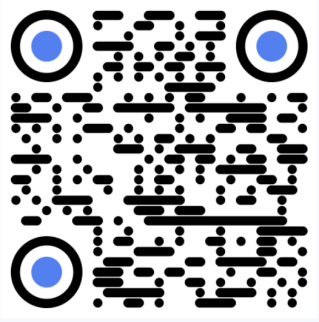
A QR code with a transparent background removes the white box behind a standard QR code. This allows the code to blend naturally into websites, packaging, posters, or product labels without disrupting the design.
Instead of looking like a sticker placed on top of your layout, a transparent QR code integrates smoothly with colors, images, and branding elements.
This guide explains what transparent QR codes are, how this works, which file format to choose (PNG vs. SVG),and exactly how to use QR code generator to create one in a few minutes.
Quick Summary: Create a Transparent QR Code in 30 Seconds
If you are in a rush, removing the white background is a simple process. Here is how to generate a QR code transparent background quickly:
1. Open a dedicated transparent QR code generator.
2. Enter your destination URL or content.
3. Enable the "Transparent Background" option in the design settings.
4. Export the file as a PNG or SVG.
5. Place the new, borderless QR code directly into your design layout.
What Is a QR Code With a Transparent Background?
A transparent QR code works exactly like a normal QR code. The only difference is the background layer.
Instead of a white background, the file contains transparent pixels. When you place the QR code on a design, the background color or image shows through.
Designers usually export transparent QR codes as:
PNG with transparency
SVG vector files
Both formats support transparency, but they serve different purposes.
You'll often see transparent QR codes used in:
• website UI design
• product packaging
• marketing posters
• presentation slides
• social media graphics
Without the white background, the QR code becomes part of the design instead of fighting it.
PNG vs SVG Transparent QR Codes: Which Should You Use?
Choosing the right file format matters.
Both PNG and SVG support transparent backgrounds, but they behave differently y depending on where you use them.
Format | Best For | Key Features |
PNG | Websites, presentations, and social media graphics | Raster image format, supports transparent backgrounds, widely compatible across browsers and apps |
SVG | Posters, packaging, and print design | Vector format, infinitely scalable without quality loss, ideal for high-resolution and large-format printing |
When to Use PNG
PNG is the most common option.
Use PNG when you need a QR code for:
• websites
• slides
• social media posts
PNG files are easy to upload and work everywhere.
When to Use SVG
SVG files are vector graphics. They scale perfectly without losing quality.
Use SVG when printing QR codes on:
• posters
• packaging
• large banners
• product labels
Designers prefer SVG for professional print work.
Why Use a Transparent QR Code?
Transparent QR codes solve several design problems. They also make your QR code look more professional.
Better Design Integration
The biggest advantage is visual flexibility.
A normal QR code looks like a white sticker placed on top of your design. A transparent one blends in naturally.
This works especially well for:
• dark backgrounds
• gradients
• textured surfaces
• product labels
More Branding Freedom
Brands often customize QR codes with colors that match their identity.
Transparent backgrounds allow the QR code to sit directly on brand colors without adding an awkward white block.
Your marketing team will appreciate this.
Perfect for Websites and Apps
On websites, a white square can break the layout. Transparent QR codes allow the code to sit on:
• dark UI sections
• banners
• hero images
The result looks intentional rather than pasted.
Cleaner Marketing Materials
Flyers, posters, and packaging designs look more polished when QR codes integrate smoothly into the layout.
Designers use transparent codes so the QR element supports the design instead of interrupting it.
How to Create a QR Code With a Transparent Background
Creating a transparent QR code takes only a few minutes. Here is how to generate qr code transparent background files in a few easy steps.
Step 1: Choose a QR Code Generator
The easiest way to create a QR code with a transparent background is to use an online QR code generator that supports PNG or SVG transparency.
Our free QR code maker lets yougenerate QR codes with transparent backgrounds in seconds. Simply enter your link, enable the transparent background option, and download the QR code as a PNG or SVG file.
Key features:
• transparent background export
• PNG and SVG downloads
• customizable colors
• logo support
• no design software required
Get started with this transparent background QR Code generator NOW!

Step 2: Enter Your Data
Type the content you want the QR code to contain.
Common examples include:
• website URL
• product page
• contact card
• app download link
The generator will automatically convert the data into a QR code.
Step 3: Customize the QR Code Design
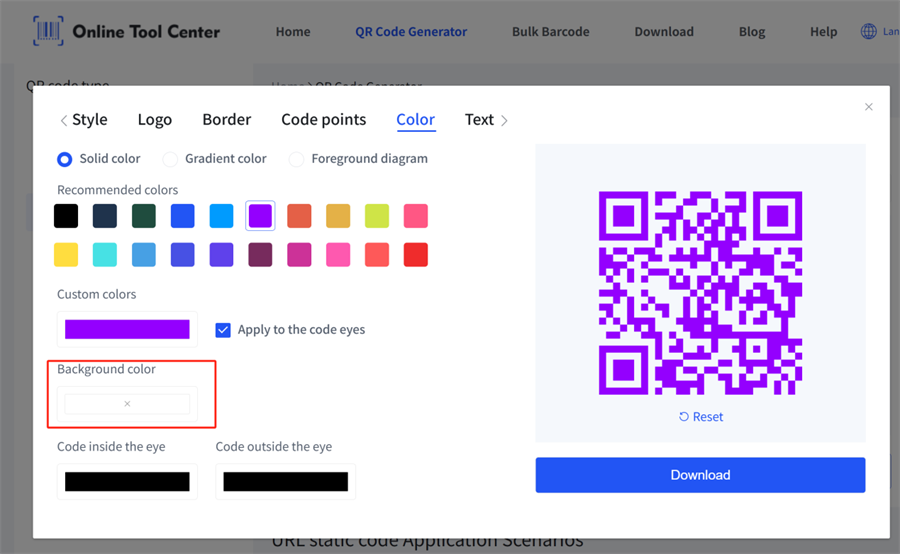
Our QR code generator allow you to adjust:
• QR code color and styles
• border patterns
• QR code dot patterns
• logo placement
This step is optional, but it helps align the QR code with your brand.
Step 4: Download PNG or SVG
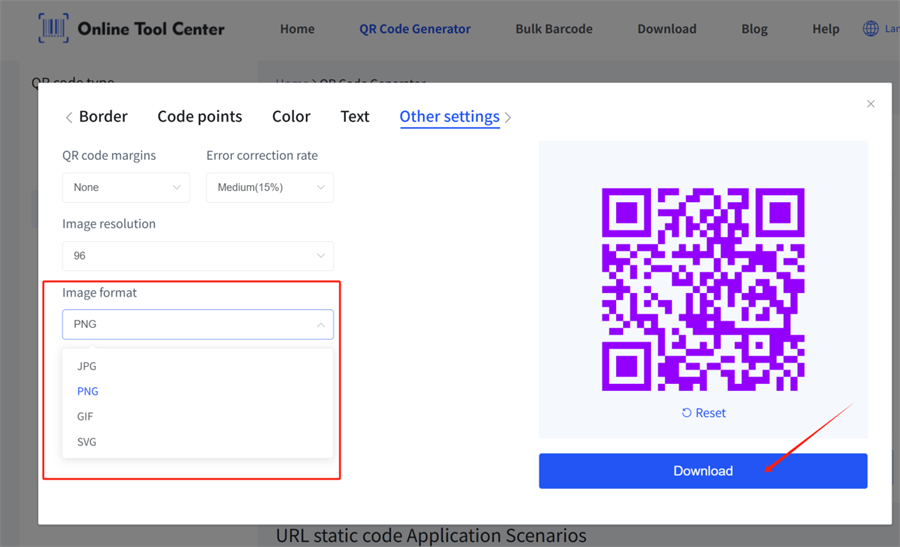
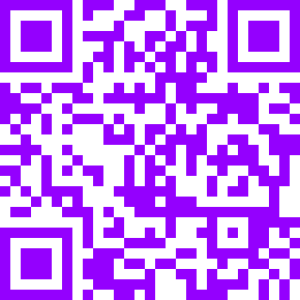
Export the file in a format that supports transparency.
Recommended formats:
PNG
Best for websites, slides, and digital graphics.
SVG
Best for print materials and scalable design.
After downloading, place the QR code onto your design. The background should now be transparent.
Design Tips for Transparent QR Codes
Transparent QR codes look great, but they must remain scannable. A few design rules help avoid problems.
Maintain Strong Contrast
The QR code must stand out from the background.
Good combinations include:
• black code on light background
• white code on dark background
Avoid backgrounds that look similar to the QR pattern.
Avoid Busy Backgrounds
Complex images behind the QR code can confuse scanners.
If you place the code over an image, make sure the area behind the code stays relatively clean.
Test the QR Code Before Publishing
Always test your QR code before publishing it. Running a proper QR code test helps ensure the code scans correctly across different devices and backgrounds.
Scan it using:
• iPhone camera
• Android camera
• multiple QR scanning apps
If it scans instantly, you're good to go.
If not, increase contrast or simplify the background.
Keep a Quiet Zone
Every QR code needs a small margin around it. This is called the quiet zone.
Even with a transparent background, leave a little space around the code. This helps scanners detect the pattern.
FAQ
1. Can QR codes have transparent backgrounds?
Yes. Most modern QR code generators allow you to export QR codes with transparent backgrounds using PNG or SVG files.
2. Do transparent QR codes still scan properly?
Yes, as long as the QR code maintains strong contrast against the background and the quiet zone remains visible.
3. What format is best for transparent QR codes?
PNG works best for websites and digital graphics. SVG is better for print design because it scales without losing quality.
4. How do I remove the white background from a QR code?
Use a QR code generator that supports transparent export. Enable the transparent background option and download the file as PNG or SVG.
Wrapping Up
Transparent QR codes solve a simple but annoying design problem: the white box that never quite fits the layout.By exporting your QR code with a transparent background, you can place it anywhere—on websites, packaging, posters, or presentations—without disrupting the design.
The process takes only a few minutes. Choose a QR code generator, enable transparency, and download the code.
Once you try it, you'll probably never go back to white-background QR codes again.
