



QR Code Test:
How to Scan, Validate, and Fix Issues
A QR code test is not just about scanning once and hoping it works. Many QR codes scan successfully on a desk but fail later in real-world conditions — under glare, on low-quality packaging, or on older phones.
To properly test a QR code, you need to check more than basic scannability. You need to confirm the destination is correct, verify print quality, and make sure the code performs reliably across devices, lighting conditions, and materials.
In this guide, you’ll learn how to test a QR code, validate it before launch, fix common failures, and use a sample QR code to scan for quick testing.
Quick Answer: What Is a QR Code Test?
A QR code test verifies three things:
- The code can be decoded reliably
- It leads to the correct destination
- It performs under real-world conditions
If any of these fail, the QR code fails.
30-Second QR Code Test
(Basic Scan Check)
Scan Using Native Camera Apps
Use:
- • iPhone default Camera
- • Android default Camera
Avoid third-party scanner apps for the first check.
Confirm the Destination
Make sure:
- • The URL is correct
- • HTTPS is active
- • The page loads immediately
Repeat the Scan
Scan again from a slightly different angle.
If it fails even once, do not assume it’s “fine.” Continue with deeper testing.
How to Test a QR Code Thoroughly (Professional Method)
A real QR code test stresses the code under variation — because users never scan under perfect lab conditions.
1 Test Across Multiple Devices (QR Scanner Test)
Not all devices decode the same way. Test with:
- At least one iPhone
- At least one Android phone
- One older or lower-cost device
Older cameras are less forgiving of low contrast or small module sizes. If it works on older hardware, it will likely work everywhere.
2 Test with Different Scanning Methods
Try native camera apps, dedicated QR scanner apps, and Google Lens. Some custom-styled QR codes scan fine in one app and fail in another. This is a design warning — not a user error.
3 Test in Real-World Lighting
Lighting causes more QR code failures than incorrect URLs. Check:
- Bright sunlight
- Low indoor light
- Mixed lighting
- Reflective glare (especially on glossy packaging)
Glare reduces contrast and confuses camera sensors. If it only works in ideal lighting, it is not production-ready.
4 Test Distance and Size
A practical field rule: Minimum QR code width ≈ scanning distance ÷ 10
For packaging and labels, anything under 2 × 2 cm is risky unless error correction is increased. Small QR codes are the most common print failure.
5 Test the Destination Experience
Scanning is only step one. Now test Wi-Fi off (cellular only), weak signal areas, and slower connections.
Confirm:
- The link loads quickly
- The page is mobile-optimized
- No redirect loops occur
A QR code that scans but loads slowly still damages user experience.
QR Code Test Online vs Printed QR Code Test: What’s the Difference?
On-Screen QR Code Test
- Resolution (no pixelation)
- Correct file format (SVG preferred)
- Contrast clarity
Printed QR Code Test
- DPI (300 DPI minimum)
- Surface material (matte vs glossy)
- Placement (avoid folds)
- Ink spread or thermal blur
Always test on the final material — not office paper.
Free Sample QR Code to Scan (Calibration Test)
If you want to test your device or scanner setup, scan the sample below.
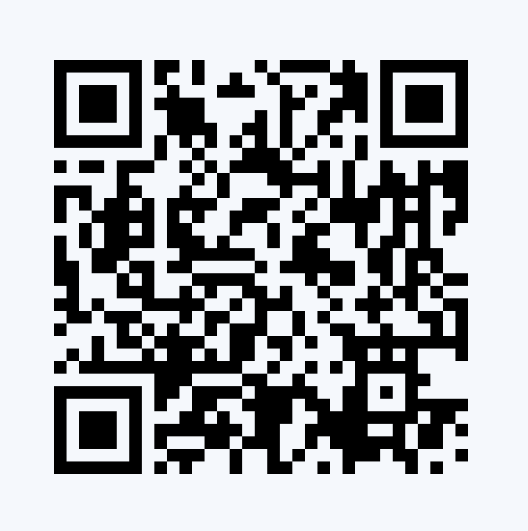
What should happen:
- The link appears instantly
- It opens correctly
- It works from multiple distances
If scanning fails, check lighting, focus, or scanner quality, and calibrate before testing your QR codes.
Most Common QR Code Test Failures
Below are real-world failure patterns seen in packaging, signage, and marketing campaigns.
1. Wrong or Broken URL
404 error, Redirect loops, Unexpected destination
Verify full URL, use HTTPS, avoid excessive redirects, use dynamic QR codes.
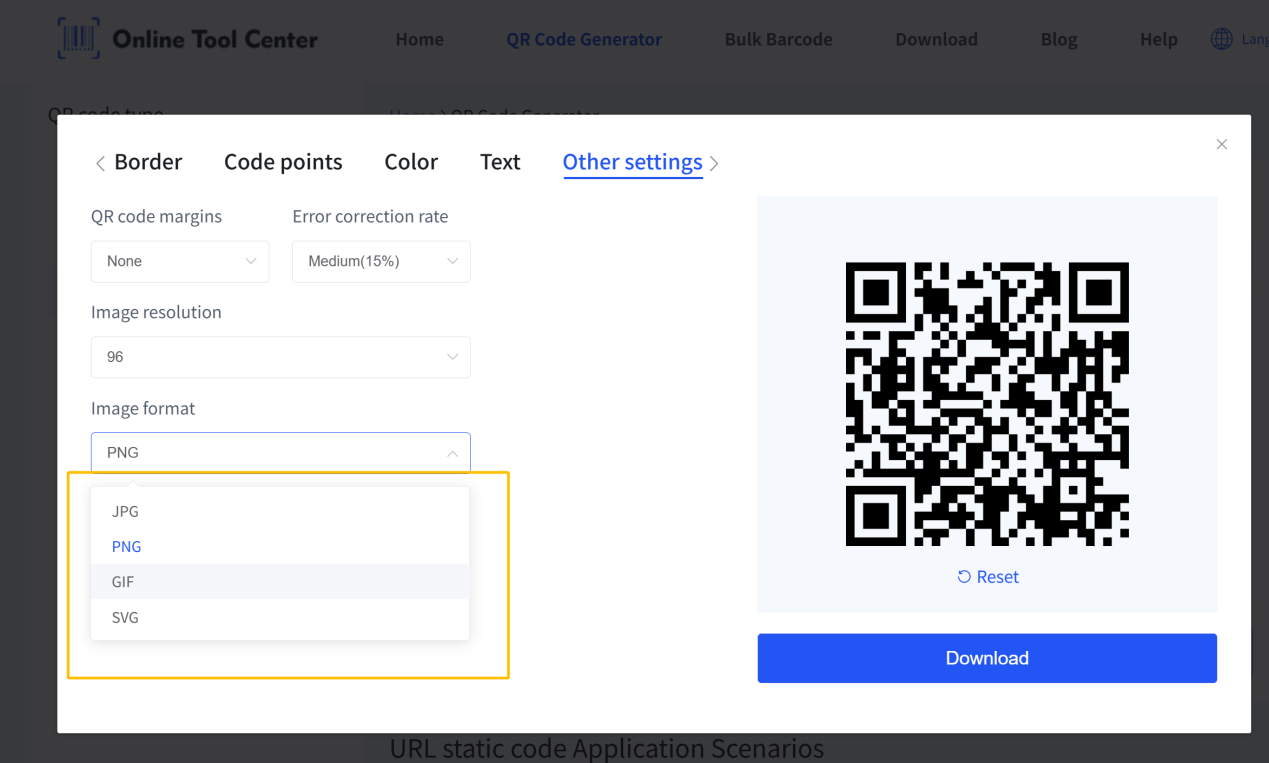
2. Low-Resolution or Compressed Code
Symptoms:
Pixelated edges, scans inconsistently.
Fix:
Export as SVG when possible, avoid screenshots, don’t resize by dragging, and use high-resolution PNGs if a raster format is needed.
3. Poor Contrast or Busy Background
Scanner does not detect code, must hold phone extremely close.
Dark foreground on light background, avoid pastel colors, keep background clean.
4. Missing Quiet Zone
The white margin around a QR code is required. Minimum rule: At least 4 modules of clear space around all edges.
Without a quiet zone, scanners struggle to isolate the pattern.
5. Print Distortion Issues
Common with:
Low-DPI label printers, glossy packaging.
Fix:
Use 300 DPI or higher, increase error correction to M or Q, avoid glossy laminations, test on curved surfaces before production.
Print-Ready QR Code Testing Checklist
Use this before any large print run.
Before Printing
- URL verified
- HTTPS confirmed
- SVG/High-res export
- Proper contrast
- Quiet zone preserved
- Error correction set
- Minimum size confirmed
After Printing
- Scanned on multiple devices
- Multiple lighting conditions
- Tested from multiple distances
- Tested on final material
- Confirmed load speed
Copyable QR Code Test Checklist
✔ Confirm correct destination
✔ Test iPhone + Android
✔ Test scanner apps
✔ Test glare conditions
✔ Test distance and angle
✔ Verify print DPI
✔ Check quiet zone
✔ Increase error correction for packaging
✔ Confirm mobile loading speed
This process eliminates the majority of QR failures.
FAQ: QR Code Test Questions Answered Clearly
How do I test a QR code on iPhone?
Open the Camera app, point at the QR code, and tap the notification banner to verify the correct destination opens.
How do I test a QR code on Android?
Use the default Camera app or Google Lens. Confirm the preview link matches your intended URL.
Why does my QR code scan but not open?
Common causes:
- Broken link
- Redirect issue
- Mobile page error
- Slow server response
The QR pattern itself is rarely the issue.
What size should a QR code be for reliable scanning?
A general guideline: Minimum width = viewing distance ÷ 10. For packaging and labels, avoid going below 2–3 cm whenever possible.
Can QR codes expire?
Static QR codes do not expire unless the destination becomes unavailable. Dynamic QR codes depend on the redirect platform remaining active.
Final Thoughts: Test Harder Than You Think
Most QR code failures aren’t technical — they’re rushed. Codes are generated quickly, resized carelessly, and printed without real-world testing. A proper QR code test takes minutes; fixing a failed campaign takes far longer.
Treat QR codes as production components, not decoration. Generate carefully, test under realistic conditions, and confirm everything works before launch.
