




If you order invitations through The Knot, you can add a QR code inside its stationery editor. If you need a downloadable file for Canva, an Etsy template, Adobe Express, or another printer, use a different route: copy your published The Knot wedding website URL and convert it with a free QR code generator.
That gives you a QR code you can place on a save-the-date, RSVP card, details card, or wedding sign. The process takes only a few minutes, but test the finished code before sending anything to print.
Does The Knot Give You a Downloadable QR Code?
The Knot can create a QR code inside its Invitation editor, but it does not provide every wedding website user with a separate image file to download.
When you personalize a paper product through The Knot Invitations, you can select the QR code tool, enter a URL, and insert the generated code into the design. The Knot says this option is available across its Invitation products. However, its Help Center also states that it cannot generate a standalone QR code for direct sharing.
That distinction matters. If The Knot is printing your invitations, its built-in option may be enough. If you are designing elsewhere, create your own downloadable QR code from the public wedding website link.
How Do You Create a QR Code for Your The Knot Wedding Website?
Start with the final public URL, not the address of your dashboard or editing screen. A QR code can only send guests to the link stored inside it.
1. Open your published The Knot website. Log in to The Knot, open your Wedding Website dashboard, and select the option to view the live site.Copy the public URL.
2. Copy the complete address from the browser. Do not copy a preview, editor, or account-management link.
3. Check the link while logged out. Open an incognito or private browser window and paste the URL. Your guests should see the public wedding site without accessing your account.
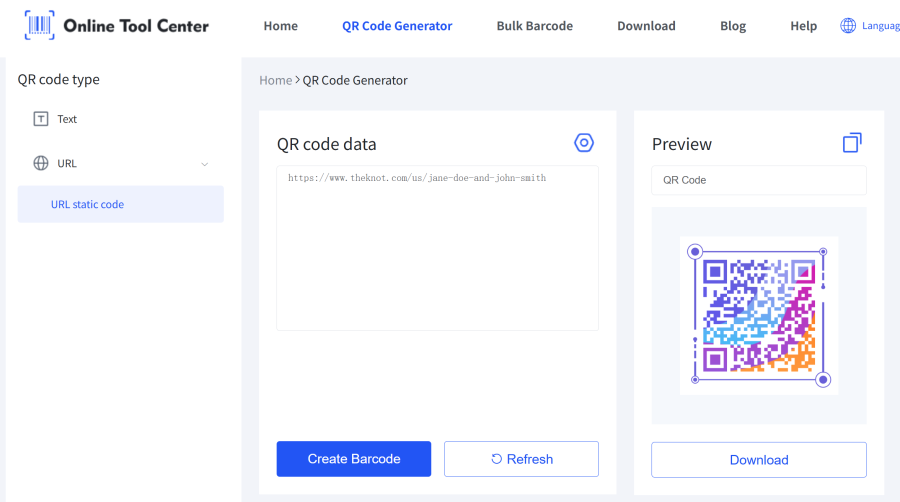
4. Open the OnlineToolCenter QR code generator. Select the URL static code option and paste your The Knot link into the data field.
5. Choose a restrained design. You can adjust the logo, border, code points, colors, text, margin, error correction, and image resolution. Keep strong contrast. Wedding colors are useful; pale modules on a white background are not.
6. Generate and scan the code. Test the preview with your phone before downloading it.
7. Download the right format. PNG is convenient for Canva, digital invitations, and common image-based templates. SVG is the better choice for professional print layouts because it stays sharp when resized.
For most couples, the published wedding website homepage is the safest destination. It gives guests access to the schedule, venue, accommodations, registry, and RSVP area from one link.
If you want a QR code for The Knot RSVP only, you may use a direct public RSVP link when one is available. Test it while logged out. Guests should reach the RSVP screen—not your dashboard, a login request, or an unpublished preview.
How Do You Add the QR Code to Invitations and RSVP Cards?
Place the QR code where guests can find it quickly without crowding the main invitation. Good options include the back of the invitation, a separate details card, an RSVP insert, or a save-the-date.
Use a specific call to action beside it:
• Scan to RSVP
• Scan for Wedding Details
• Scan for Travel and Accommodation Information
• Scan to Visit Our Wedding Website
“Scan Me” looks tidy but tells guests very little. A clear instruction sets the right expectation before they open their camera.
If you are working in Canva, upload the PNG or SVG and place it as a normal image element. The same approach works with Adobe Express and most Etsy invitation templates. Keep the code square, leave clear space around it, and avoid placing it over florals, watercolor textures, or photographs. Our guide to creating a QR code in Canva covers the design workflow in more detail.
For RSVP cards, link to the published The Knot site or a verified public RSVP page. The Knot's online RSVP flow lets invited guests find their invitation and submit a response. Print a short website address below the code as a backup for anyone who prefers typing the URL.
Ready to Create Your Wedding QR Code?
Don't wait until the last minute! Copy your public The Knot link now, head over to our online free QR Code Generator, and download a crisp PNG or SVG for your invitations in under two minutes.

