



Introduction
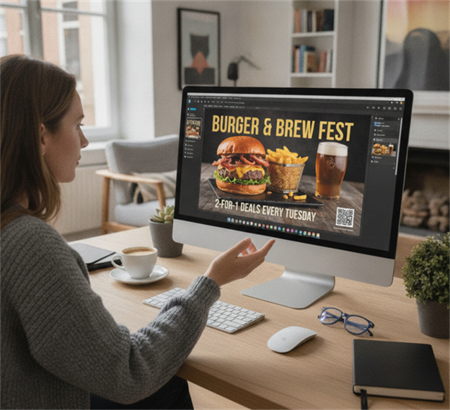
Creating a QR code in Canva is quick and convenient, especially for flyers, posters, menus, and business cards. Canva allows users to generate QR codes directly inside the editor and place them into any design within seconds.
However, while Canva's QR code feature is easy to use, it is relatively limited in terms of customization and branding. If you want a more professional, high-conversion QR code with a logo, frame, and "Scan Me" call-to-action, there are better design approaches.
This guide explains how to create a QR code in Canva step by step—and how to upgrade it into a more effective, branded QR code.
How to Create a QR Code in Canva
Canva includes a built-in QR code generator that allows you to create a basic QR code without leaving the platform.
Step-by-step process:
1. Open your Canva design (flyer, poster, menu, or business card)
2. Go to the "Apps" section in the left panel
3. Search for "QR Code"
4. Enter your URL or text
5. Click "Generate QR Code"
6. Drag and place it into your design
Once inserted, Canva automatically generates a functional QR code that can be used for digital or print purposes.
What you can do in Canva:
• Generate QR codes instantly
• Insert them into any design layout
• Resize and reposition easily
What Canva QR Codes Are Designed For (and Their Limitations)
Canva's QR code feature is designed for fast and simple QR code creation, making it ideal for basic use cases such as adding links to posters, flyers, menus, and business cards. It is especially useful for users who need a quick, no-friction solution inside a design workflow.
However, Canva QR codes are not primarily built for advanced branding or marketing optimization. As a result, customization options are relatively limited compared to dedicated QR code tools.
For example, Canva QR codes typically do not support advanced features such as fully customizable frames, structured "Scan Me" call-to-action designs, or detailed control over branding elements like logo placement and QR styling.
In practice, Canva works best when simplicity is the priority, while more advanced QR code design requirements may require a dedicated QR code generator.
How to Design a More Effective QR Code (Beyond Canva)
A more effective QR code combines functionality with branding elements such as logos, frames, and clear call-to-action text.
With our free QR code maker, you can easily create a fully customized QR code in just a few steps and use it directly in Canva or any design tool.
Add a Logo for Brand Recognition
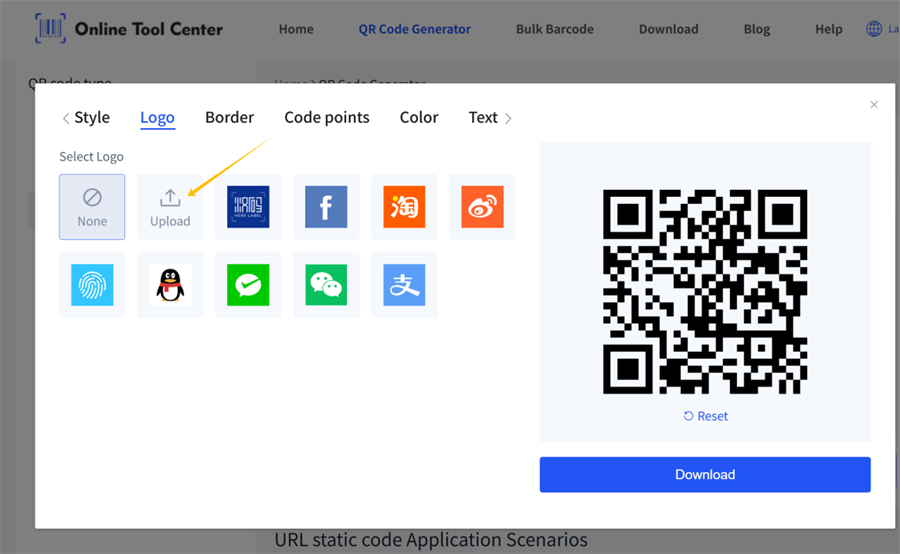
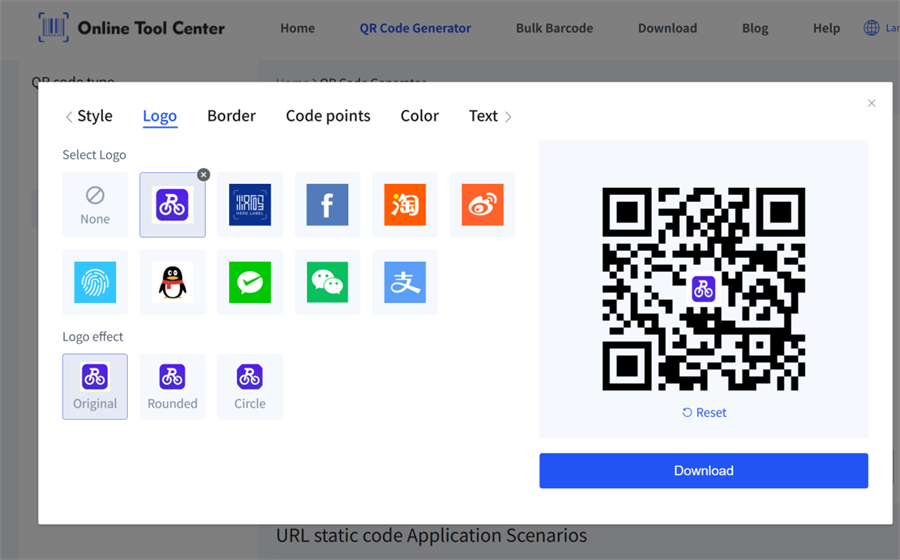
Upload your logo in our QR code generator and place it in the center of the QR code before downloading. The tool automatically adjusts the design to keep it scannable.
Adding a logo helps users instantly recognize your brand and increases trust, especially in retail, restaurant, and packaging use cases.
Use a Frame with a Call-to-Action
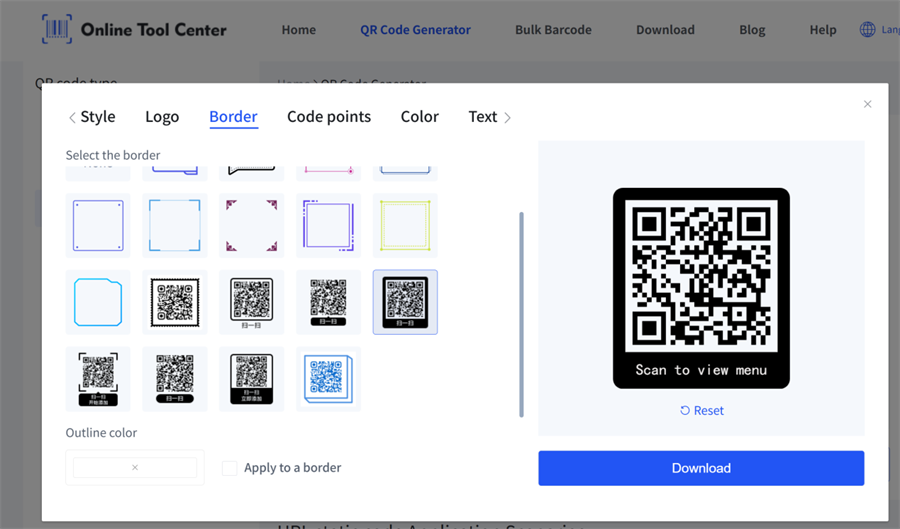
In the customization panel, select a frame style such as "Scan Me", "Scan for Menu", or "Scan to Pay", then customize the text as needed. After that, simply generate and download your QR code instantly.
This simple CTA significantly improves scan rates because it tells users what to expect.
Improve Visual Contrast
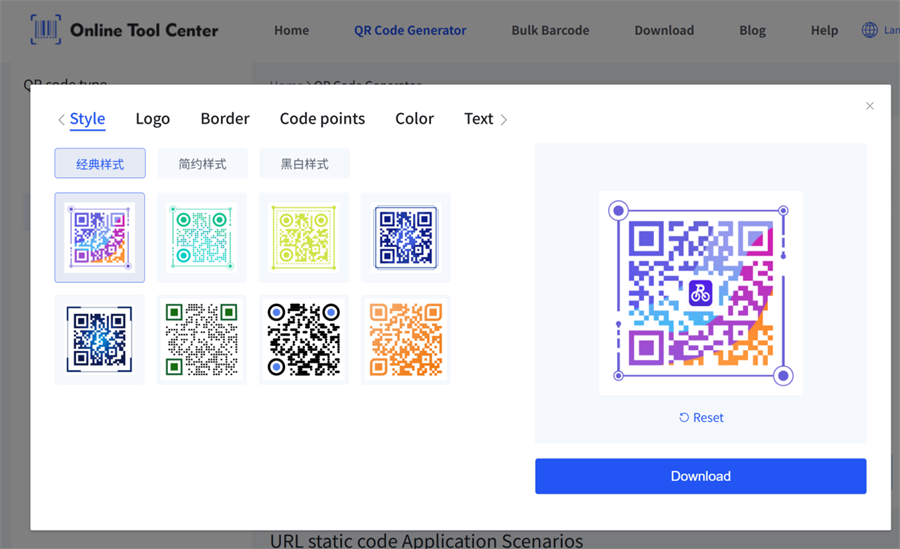
Our tool offers multiple QR code styles and full color customization options. Simply select a style, add your brand logo, and generate your QR code before exporting.
Creating a custom QR code this way is extremely simple.
It is important to maintain strong contrast between the foreground and background. Avoid placing the QR code on busy or low-contrast designs, as this can reduce scan reliability.
QR Code Design Best Practices
To ensure your QR code performs well in real-world use, follow these best practices:
Maintain high contrast
Dark QR code on a light background works best.
Keep quiet zone clear
Do not place text or graphics too close to the QR code edges.
Avoid busy backgrounds
Patterns or images behind QR codes can reduce scan accuracy.
Always test before printing
Scan your QR code using different smartphones before final use.
Final Thoughts
Creating a QR code in Canva is fast and simple, making it ideal for basic use cases. However, Canva-generated QR codes lack advanced branding and marketing features such as frames, logos, and call-to-action design.
For businesses and designers who want better scan rates and a more professional look, it's usually a better idea to combine Canva with a dedicated QR code generator. This way, you can easily create branded QR codes that look great and still work perfectly in real-world use.
FAQ
Can I create a QR code directly in Canva?
Yes. Canva has a built-in QR code generator that allows you to create simple QR codes inside your design.
Why is my Canva QR code not customizable?
Canva's QR feature is designed for simplicity and does not support advanced customization like logos or frames.
How can I make a QR code more professional?
Add a logo, use a "Scan Me" frame, improve contrast, and use a dedicated QR code generator for advanced design options.
What is the best format for QR codes?
PNG is best for digital use, while SVG is ideal for printing and scaling.
