



A transparent QR code is useful when you want the code to blend into a design instead of sitting inside a white box. It works well for business cards, product packaging, flyers, stickers, and other branded materials.
The key is simple: use a QR code generator that supports transparent backgrounds and exports in a suitable format such as PNG or SVG. Just remember that transparency improves design flexibility, but scan reliability still depends on contrast and placement.
What is a Transparent QR Code and Why Use it?
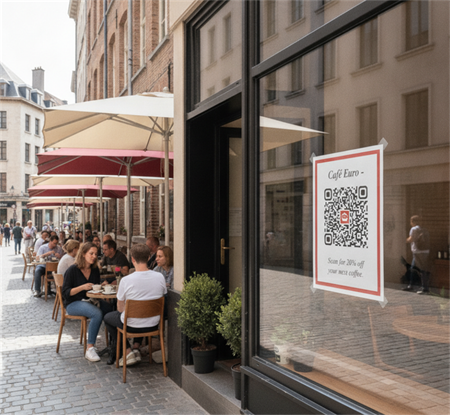
A transparent QR code is simply a regular QR code where the solid white background layer has been removed, leaving only the dark data modules (the dots and squares) intact.
When you export a QR code with a transparent background—typically in a PNG or SVG format—it seamlessly overlays onto any textured background, image, or colored canvas in your design software.
Transparent QR codes are popular because they look cleaner in branded designs. They are especially useful when you want the code to match a product label, packaging mockup, or marketing layout.
Common use cases include:
• Business cards.
• Product packaging.
• Event flyers.
• Stickers and labels.
• Digital presentations.
• Website graphics.
Step-by-Step: How to Make a QR Code with a Transparent Background Free
Making a transparent QR code does not require complex Photoshop skills. You can do it directly in your browser in under a minute.
For this tutorial, we will use the free tool on onlinetoolcenter's QR Code Generator. It is entirely free, leaves no watermarks, and does not require you to register or log in.
Step 1: Input Your Destination Link or Text
Head over to the onlinetoolcenter QR Code Generator. Paste your website URL, text, or contact information into the input field. The tool will instantly generate a standard black-and-white code preview.
Step 2: Customize Your Design (Optional)
If you want to move beyond the basic look, customize the design elements. You can:
• Adjust the shape of the corner points (eyes) and dots.
• Add a custom logo or brand icon in the center.
• Add a frame around the QR code.
• Change the color of the foreground patterns.
Step 3: Set Background Opacity to Transparent
Locate the Background Color settings panel. Instead of picking a color, look for the opacity slider or the transparency checkbox. Set the background opacity to 0% (fully transparent). You will see the white background disappear in the preview window.
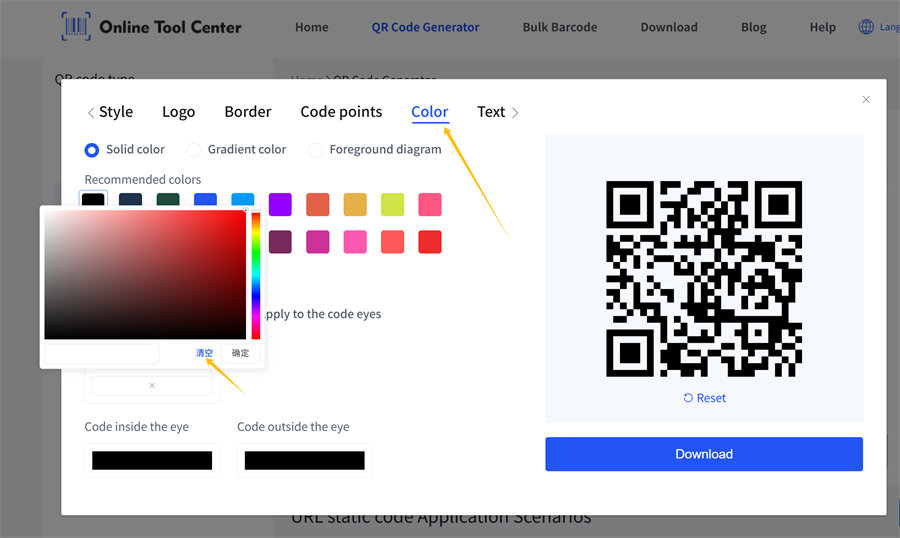
Step 4: Download in PNG or SVG Format
Once you are happy with the preview, choose your export format.
• For digital screens or mockups: Download as a high-resolution PNG.
• For professional print or vector work: Select SVG.
• For dynamic layouts: You can even choose GIF.
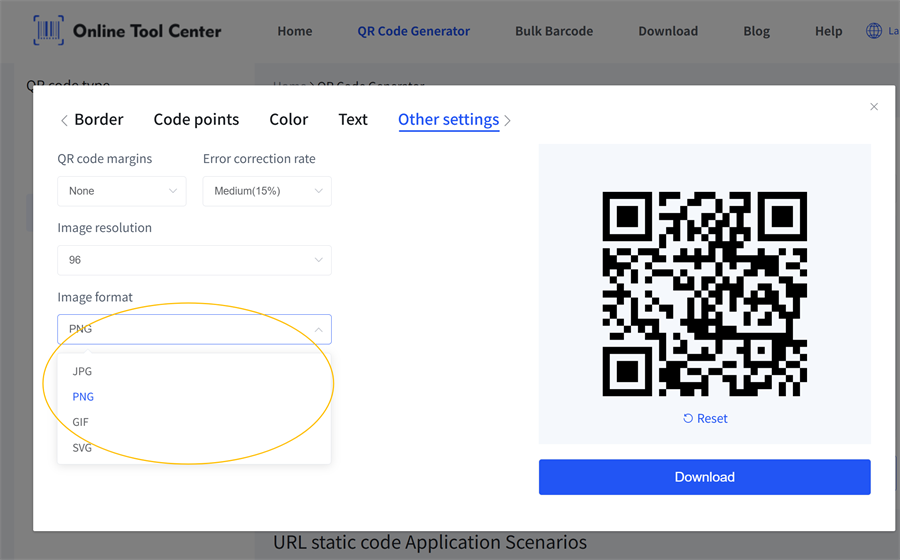
Click download, and your file is saved instantly to your device—no sign-up forms, no credit cards, and absolutely no watermarks.
Why Use onlinetoolcenter Transparent QR Code Generator?
While there are plenty of design suites out there, onlinetoolcenter is built to do one thing exceptionally well: generate custom QR codes without the friction.
• No Registration Required: You do not need to create an account, log in with Google, or verify your email. Just open the page, build your code, and download.
• 100% Free with No Watermarks: We do not slap logos on your codes or demand payment after a 14-day trial. The code is yours permanently.
• Unmatched Format Support: While most basic tools only let you download lower-res JPGs, we support high-quality PNG, JPG, SVG, and GIF downloads.
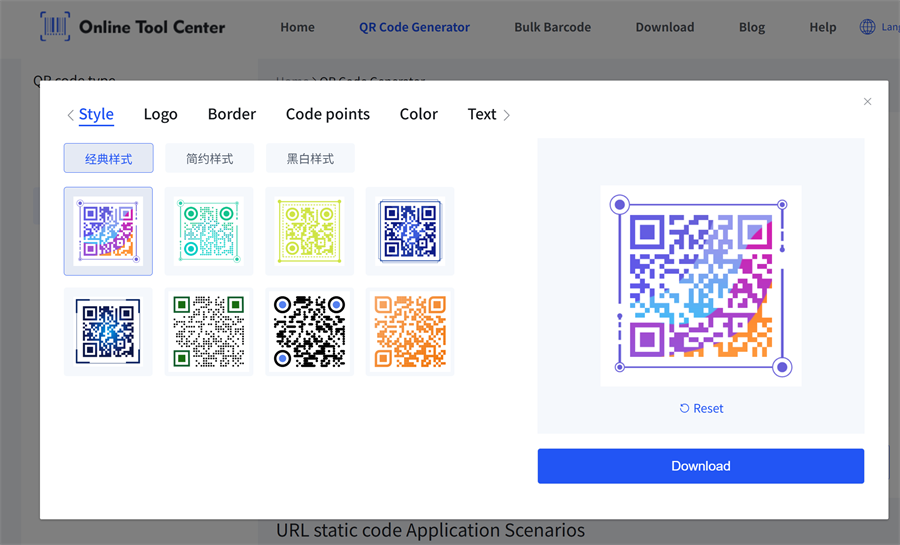
• Deep Customization: Beyond transparency, you can tweak shapes, gradients, and custom brand logos to make sure the code matches your brand's aesthetic.

Technical Scannability Tips: Contrast is Your Best Friend
Removing the background of a QR code looks incredibly clean, but it introduces a major technical risk: scannability.
A camera phone reads a QR code by detecting the contrast between the dark patterns (foreground) and the light space behind them (background). If that contrast disappears, the code becomes unreadable.
Keep these simple rules in mind when placing your transparent asset:
1. Beware of Busy Backgrounds: Placing a transparent QR code directly over a highly detailed photograph or a multi-colored pattern will confuse scanners. Try to place it over a solid or subtly textured area.
2. Watch Out for Dark Mode: If you download a black transparent QR code and place it on a dark grey or black website background, it will be invisible to both human eyes and mobile cameras. If your background is dark, generate a white QR code with a transparent background.
3. Keep the "Quiet Zone" Clear: The quiet zone is the thin, empty border area directly surrounding the outer edges of the QR code. Ensure your background design does not crowd this space, or scanners will fail to register where the QR code starts.
4. Always Test Before Printing: Never send a design to the printer without scanning the code directly from your monitor using at least two different smartphone models.
Frequently Asked Questions (FAQ)
Can I get a transparent QR code in SVG vector format for free?
Yes. Using onlinetoolcenter, you can generate and download your transparent QR code as an SVG vector file. This is highly recommended for print jobs (like packaging, clothing tags, or signs) because vector files can be scaled infinitely without pixelation.
Do transparent background QR codes expire?
Static transparent QR codes generated through our tool never expire. They contain the raw data directly in the pattern, meaning they will work indefinitely as long as the destination URL remains active.
Why is my transparent QR code png not scanning?
This is almost always a contrast issue. If the background surface where you placed the transparent PNG is too dark, or if it matches the color of the QR code modules too closely, the phone's camera cannot distinguish the pattern. Try changing the code color to white or placing a semi-transparent light layer beneath it.
