




A URL QR code turns a web address into a scannable image. Instead of typing a long link, people can scan the code with their phone and open the page directly.
You can create one for free in just a few steps. With Online Tool Center's URL QR code generator, you don't need to register or pay to get started. The tool encodes your original URL directly into a static QR code, without routing scans through a third-party redirect link. You can then download the code in PNG, SVG, or other supported formats.
How Do You Turn a URL into a QR Code?
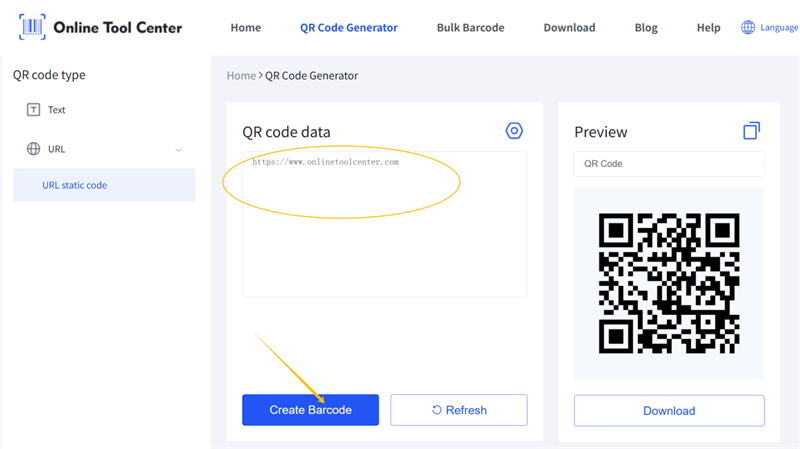
Here's how to turn a URL into a QR code in three simple steps: copy the link, generate the code, and download the image.
Step 1: Copy the Full URL
Open the webpage you want to share and copy its complete URL from the address bar.
For example:
https://www.example.com/product
Make sure the link is correct and leads to the intended page. If you're using a link with UTM parameters to track website traffic, keep those parameters in place.
Step 2: Generate the QR Code
Use our free URL to QR code generator to convert a URL to a QR code in seconds, with no sign-up or payment required.
Simply enter your URL, generate the code, and check the preview.
If you customize the code with colors, dots, a frame, or a logo, keep the pattern clear and maintain strong contrast between the code and its background. A design that looks good on screen still needs to scan reliably.
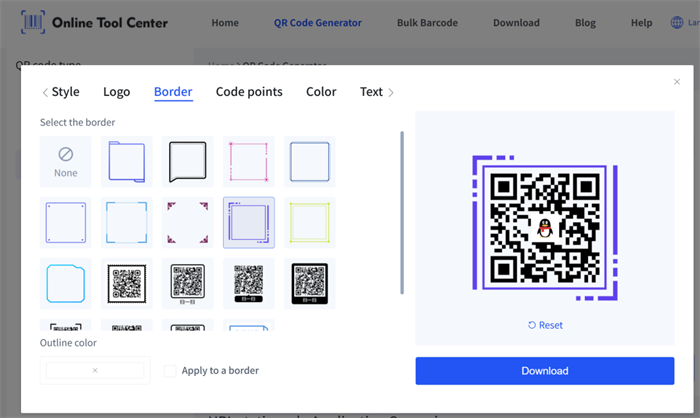
Learn how to customize QR codes for your brand.
Step 3: Download the QR Code
Choose a file format that suits your project.
• PNG: A practical choice for websites, presentations, digital documents, and social media.
• SVG: Ideal for print layouts, packaging, posters, and business cards because vector graphics can be resized without becoming pixelated.
• JPG or GIF: Useful for certain digital workflows when those formats fit your requirements.
Online Tool Center supports PNG, SVG, JPG, and GIF downloads. For most digital uses, PNG works well. If you're sending the code to a designer or placing it in a print layout, SVG is often the better option.
Before sharing or printing the file, scan it with your phone to make sure it opens the right page.
What Should You Check Before Creating a URL QR Code?
Before generating a QR code, check the destination URL, consider whether tracking parameters are needed, and make sure the page is accessible to your intended audience.
Check that the link works. Open the URL in a browser and confirm that it leads to the correct page. If the page requires a login, remember that people scanning the code may not have access.
Keep the parameters you need. If the URL contains UTM parameters for campaign tracking, removing them may affect how visits appear in your analytics reports. Keep them if you need to measure traffic from the QR code.
Consider the URL length. You don't have to shorten a URL before turning it into a QR code. However, a longer URL generally creates a denser QR code, which can be harder to scan when printed too small. Use a suitable size and test the result before publishing it.
Know where your QR code leads. A static QR code can encode the original URL directly, without an intermediate redirect. This makes the destination easier to identify and avoids dependence on a separate QR code redirection service. However, if the original website later changes its address or becomes unavailable, the QR code won't fix that problem automatically.
Does a URL QR Code Expire?
A static QR code generally has no built-in expiration date because the URL is stored directly in its pattern. A dynamic QR code usually relies on a managed redirect link, which can allow the destination to be changed after the code has been created.
The main difference is what happens when your needs change.
Feature | Static QR Code | Dynamic QR Code |
Encoded destination | Usually the original URL | Usually a service-managed redirect URL |
Change the destination later | Generate a new QR code | Often possible through the service |
Built-in scan analytics | No | Often available |
Dependence on a QR service | Not required for the code itself | Usually depends on the redirect service |
Best for | Fixed links and long-term materials | Campaigns that need destination changes or scan analytics |
Which type should you choose?
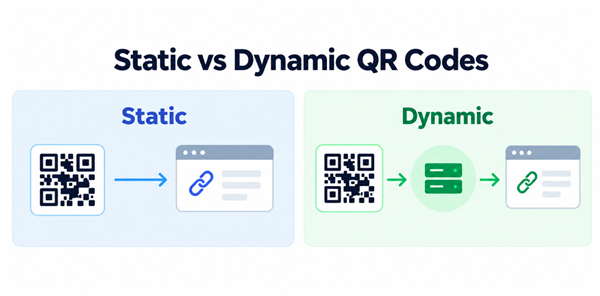
A static QR code is a good fit when the destination is unlikely to change and you don't need scan analytics from a QR code platform. Examples include website links on business cards, product packaging, posters, and printed menus.
A dynamic QR code may be more useful when you need to update the destination after printing or measure scans through a management platform. Keep in mind that these features may depend on the provider's service and account terms.
With a static code, the encoded URL cannot be edited after generation. If the link changes, you'll need to create a new QR code and replace the old one wherever it's used.
Explore static vs. dynamic QR codes.
How Can You Test a URL QR Code Before Using It?
Always test your QR code before sharing it or sending it to print. A successful download doesn't guarantee that the code will work in its final setting.
Follow these checks:
1. Scan the code with your phone. Use the camera or a QR code scanning app, then check the destination shown before opening it.
2. Confirm the correct page opens. Make sure the link doesn't lead to an unexpected page or an error.
3. Test on another device. This helps catch issues that may not appear on your own phone.
4. Check the final size. If the QR code will appear on a poster, label, package, or business card, test it at the intended size.
5. Keep enough contrast and clear space. A dark code on a light background is a reliable starting point. Leave a blank margin around the code and avoid placing text or graphics too close to its edges.
If you're printing hundreds of copies, test a physical sample first. It's much easier to correct a small issue before printing than to replace finished materials.
Frequently Asked Questions
Do You Need to Shorten a URL Before Creating a QR Code?
No. You can generate a QR code directly from a full URL. Shortening the link may produce a less dense code, but it can also introduce an additional redirect service. If you want the QR code to encode your original URL directly, use the full link.
Can You Track Scans with a Static URL QR Code?
A static QR code doesn't provide scan analytics by itself. You can add UTM parameters to the destination URL and use a website analytics tool to measure visits attributed to that link. However, attributed visits are not necessarily the same as the total number of QR code scans.
If you need scan counts and other QR-specific analytics, consider a dynamic QR code service that offers those features.
Can You Create a QR Code for a Google Form?
Yes. Open your Google Form, copy its responder link, and paste it into a URL QR code generator. Generate the code, then scan it to confirm that it opens the correct form.
Before sharing the QR code, check the form's access settings. If respondents need to sign in or have specific permissions, make sure those requirements match your audience.
Create Your URL QR Code for Free
Need a quick way to share a website, product page, online form, or document link? Use Online Tool Center's free URL QR code generator to turn your URL into a static QR code.
There's no registration required. The tool encodes your original URL directly, without a third-party redirect link, and supports PNG, SVG, JPG, and GIF downloads.
Generate your code, download the format you need, and scan it once before sharing or printing. A quick test now can save you from fixing a broken link later.

