



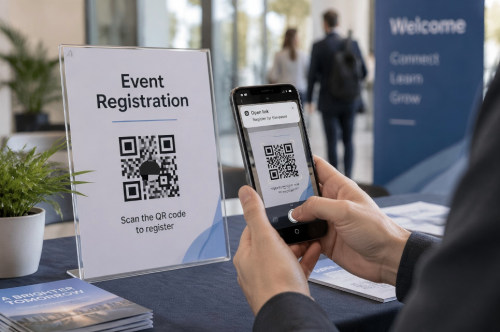
A registration QR code gives people a quick way to open an online sign-up form. They scan the code with their phone, enter their details, and submit the form. No long URL to type and no paper form to carry around.
The QR code does not collect registration details by itself. It usually contains the public link to a Google Form, event page, or another online registration form.
Already have your registration link? Paste it into our free QR code generator to create a QR code in seconds. The generated image has no watermark and can be downloaded directly in multiple file formats.
How to Make a QR Code for a Registration Form
You do not need a special registration platform to get started. If your form has a public web address, you can turn that link into a QR code.
1. Create and Publish Your Registration Form
Start with an online form that collects the information you need. Common fields include:
• Name
• Email address
• Phone number
• Ticket or membership type
• Preferred date or time
• Special requests
• Consent to event terms or privacy policies
You can build the form with Google Forms, Microsoft Forms, Jotform, Typeform, Eventbrite, or your own website.
Keep the form short when possible. Someone scanning a poster or invitation is likely using a phone, so every extra field adds friction.
Before generating the QR code, publish the form and make sure it is accepting responses.
2. Copy the Public Registration Link
Copy the link intended for participants, not the private editing link from your form dashboard.
Open the link in an incognito or private browser window. If the form opens and can be completed without administrator access, you probably have the right URL.
Check the form's access settings as well. A public event form should not require users to sign in unless that restriction is intentional.
3. Paste the Link Into the QR Code Generator
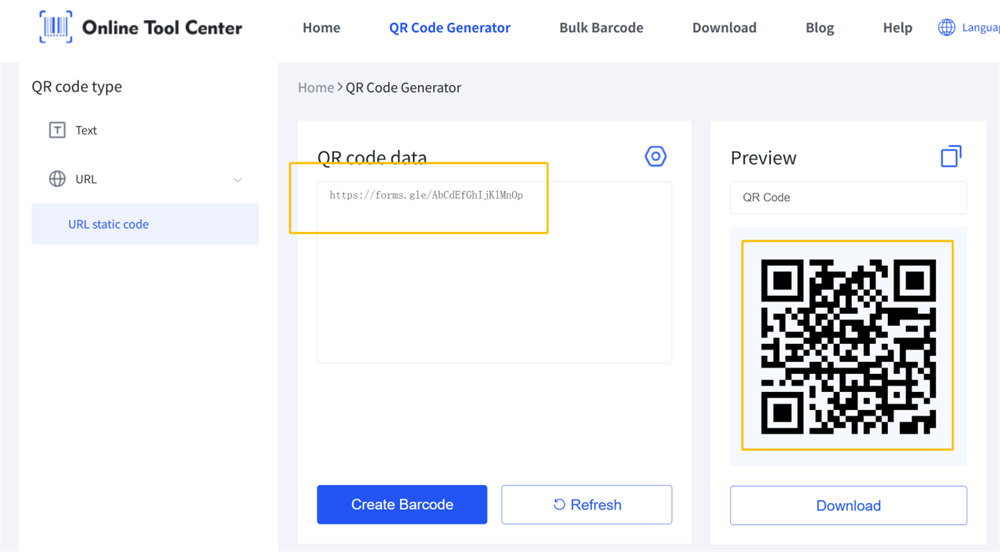
Open our QR code generator and select the URL option. Paste the registration form link into the URL field.
The generator converts the link into a scannable QR code. When someone scans it, their phone opens the same registration page.
This method works with a full URL or a shortened form link. If you use a link shortener, make sure the shortened link will remain active for the entire registration period.
4. Generate and Download the QR Code
Generate the code and check the preview. You can then download the watermark-free image in one of the available file formats.
Choose the format based on how you plan to use it. A standard image format is usually enough for email, social media, or presentation slides. A scalable format is better for large posters, banners, and other printed materials because it stays sharp when resized.
Do not crop the white border around the QR code. This empty area, known as the quiet zone, helps phone cameras identify and scan the code.
5. Test the Registration Process
Scanning the QR code once is not enough. Test the entire journey from scan to submission.
Use at least two phones if possible. Then check that:
• The QR code opens the correct form
• The page loads without administrator access
• The form is easy to use on a phone
• Every required field works
• The submit button is active
• A confirmation message appears
• The submitted registration reaches your form dashboard
Test the final printed version too. A QR code that works on your computer screen may become difficult to scan if it is printed too small, placed on a reflective surface, or surrounded by a busy design.
How to Create a QR Code for a Google Form
A Google Form QR code is simply a QR code that opens the form's responder link. Google Forms collects the registration details. The QR code only gives participants a faster way to reach the form.
Here is the basic process:
1. Open your registration form in Google Forms.
2. Publish the form and choose who can respond.
3. Copy the responder link.
4. Paste the link into our QR code generator.
5. Generate and download the QR code.
6. Scan the finished code and submit a test response.
Google currently requires a form to be published before responders can access it. You can copy the responder link from the Preview, Published, or Share options.
For an open registration, review the general-access settings and make sure the intended audience can reach the form. Google explains these controls in its Forms publishing and sharing guide.
If you want registrations stored in a spreadsheet, open the Responses section in Google Forms and select Link to Sheets. New responses can then be organized in Google Sheets.
The QR code should still point to the Google Form, not the response spreadsheet. Participants fill out the form; organizers use the linked sheet to review the results.

Can You Turn Any Registration Link Into a QR Code?
Yes. Any publicly accessible registration URL can usually be converted into a URL QR code.
That includes links from:
✔️ Google Forms
✔️ Microsoft Forms
✔️ School registration systems
✔️ Membership sign-up pages
✔️ Appointment booking platforms
✔️ Registration pages on your own website
The form provider does not matter as much as the link settings. If the URL works in a normal mobile browser, it can generally work inside a QR code.
Private forms are different. If a registration page is limited to employees, students, members, or invited guests, scanning the code may lead to a sign-in screen. That can be appropriate for an internal registration process, but it should not come as a surprise to participants.
A QR code also cannot fix a broken or expired destination. If the original registration page is removed, renamed, restricted, or closed, the code will no longer lead to an active form.
Where Can You Use a Registration QR Code?
Place the QR code where people are most likely to decide that they want to register.
1. Event Invitations
Add a QR code to printed invitations so guests can respond without manually entering a URL. A short instruction such as “Scan to Register” makes the purpose clear.
2. Posters and Flyers
Registration QR codes work well on posters for conferences, classes, sports events, open houses, and community activities. Place the code where it can be scanned without reaching, bending, or standing too far away.
3. Reception Desks
A small sign at a front desk can help visitors register for a service, membership, tour, or on-site event using their own phones.
4. Presentation Slides
Show the code at the end of a webinar, training session, or live presentation. Leave it on the screen long enough for the audience to open their cameras and scan it.
5. Social Media Graphics
A QR code can be added to a social post, but include a clickable registration link in the caption as well. People viewing the post on the same phone cannot always scan the code easily.
6. Email Campaigns
A QR code can support registration from a printed email or a second device. For most recipients, however, a normal clickable button should remain the primary option.
7. Tickets and Badges
A shared registration QR code can be printed on promotional tickets or staff badges to help new participants reach the sign-up form. Make the label clear so it is not mistaken for a personal ticket or admission code.
Best Practices for Registration QR Codes
1. Use a Mobile-Friendly Form
Most people will open the form on a phone. Use short questions, large input fields, clear labels, and as few required fields as the registration process allows.
2. Add a Clear Call to Action
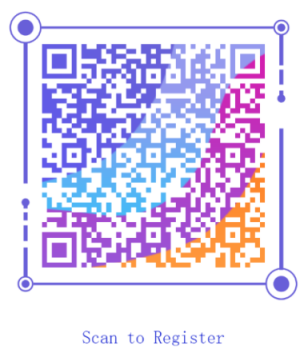
A QR code without context is easy to ignore. Add a short instruction such as:
• Scan to Register
• Scan to Sign Up
• Scan to Reserve Your Place
• Scan to Join the Event
The message should tell users exactly what will happen after they scan.
3. Keep Strong Color Contrast
A dark QR code on a light background is the safest choice. Avoid placing it over photographs, patterns, gradients, or reflective materials.
Brand colors can work, but visual style should never make the code harder to read.
4. Provide a Backup Link
Include a short registration URL near the QR code when space allows. It gives users another option if their camera cannot scan the code or if they are viewing it on the same device they need to register with.
5. Avoid Changing the Destination Carelessly
A static QR code permanently contains the URL entered when it was created. Editing the questions inside the same form is usually fine because the form URL remains unchanged. Replacing the form with a new URL is different—the printed code will still open the old link.
If the registration destination may change after printing, consider whether you need a dynamic or managed redirect link.
Frequently Asked Questions
Can I create a QR code for a Google Form?
Yes. Publish the Google Form, copy its responder link, and paste that URL into a QR code generator. Test the finished code in a private browser window to confirm that participants have permission to open the form.
Is it free to create a registration QR code?
You can use our free QR code generator to convert a public registration link into a downloadable QR code. The generated image has no watermark. Some advanced services may charge for dynamic links, scan analytics, or account-based code management.
Does a registration QR code expire?
A static QR code does not expire on its own. It will keep encoding the same URL. However, it may stop being useful if the registration form is deleted, unpublished, restricted, or no longer accepting responses.
Can I change the registration link after printing the QR code?
You cannot change the URL stored inside a static QR code. You would need to generate and print a new one.
A dynamic QR code or managed redirect may allow the destination to be updated without changing the printed image. Check whether your chosen service supports that feature before printing.
Why does my registration form ask users to sign in?
The form may be restricted to a company, school, Google account, or approved group. Some Google Forms settings, such as limiting users to one response, can also require sign-in.
Review the responder and general-access settings. Then test the link in an incognito window while signed out of your account.
Can I turn any online form link into a QR code?
Yes, as long as the form has a working URL that the intended participants can access. Copy the public responder link, convert it into a URL QR code, and test a complete submission before sharing it.
