



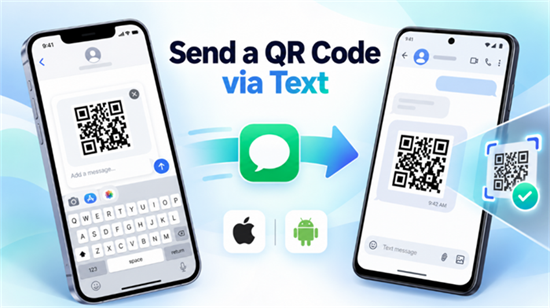
Want to send a QR code to someone's phone? You can do it right from your messaging app. Simply open a conversation, attach the QR code image from your photo library, and tap Send. The recipient can then view, save, or scan the code.
Whether you're sharing an event ticket, a payment QR code, or a website QR code, the process is similar on iPhone and Android. You can also forward an existing QR code or share a link instead of an image.
Don't have a QR code yet? You can create a QR code for free and download the image before sending it.

Here's how each option works.
How to Send a QR Code via Text on iPhone
If your QR code is saved in your iPhone's Photos app, you can send it using Apple's Messages app.
1. Open Messages and select a conversation, or tap the compose button to enter a phone number.
2. Tap the + button beside the message field.
3. Select Photos and find your QR code image.
4. Tap the image to attach it to your message.
5. Add a short note if needed, then tap Send.
You can also open the QR code in Photos, tap Share, and select Messages.
Your iPhone may send the image through iMessage, RCS, or MMS, depending on the recipient's device, carrier, and messaging settings. You don't need to choose the messaging protocol manually in most cases.
Tip: Send the original QR code image rather than a heavily cropped screenshot. This helps preserve the white space around the code, which scanners need for reliable recognition.
For additional details, see Apple's guide to sending photos in Messages.
How to Send a QR Code via Text on Android
On Android, you can text a QR code using Google Messages or another messaging app that supports picture attachments.
Here's how to send it with Google Messages:
1. Open Google Messages and select a conversation.
2. Tap the Gallery icon beside the message field.
3. Choose the QR code image from your phone.
4. If available, select HD+ to send the image at its original resolution.
5. Tap Send.
Google Messages supports RCS (Rich Communication Services), which allows users to share high-resolution images over Wi-Fi or mobile data. If RCS isn't available, the app may use MMS instead.
MMS can compress images, so always check that the QR code remains clear after sending.
The steps may look slightly different on Samsung Galaxy, Google Pixel, and other Android phones, depending on the messaging app.
How to Forward an Existing QR Code to Another Phone
You don't need to create a new QR code if someone has already sent you one. You can forward the original message or share the saved image with another contact.
On iPhone:
1. Open the conversation containing the QR code.
2. Touch and hold the message bubble containing the image.
3. Tap More, then choose the forwarding or sharing option.
4. Enter the new recipient's phone number and send it.
On Android:
1. Open the QR code message in Google Messages.
2. Touch and hold the message to open its action menu.
3. Select Forward.
4. Choose a contact and send the message.
If the QR code is saved in your photo gallery instead, open the image and use your phone's Share feature to send it through Messages.
Before forwarding, check whether the QR code contains private information, such as a personal ticket, payment details, or an account-specific access code.
Should You Send a QR Code as an Image or a Link?
Both methods work, but the best choice depends on what the recipient needs to do.
Sharing method | Best for |
QR code image | Sharing tickets, check-in codes, payment QR codes, or other codes the recipient needs to display or scan |
Link to a QR code image | Letting someone open or download a QR code from a webpage |
Direct website URL | Helping someone visit a webpage without scanning anything |
If the recipient needs to display a QR code for another device to scan, send the image. For example, someone entering an event may need to show their ticket QR code at the entrance.
If you simply want someone to visit a website, send the URL directly. It saves the recipient an extra scanning step.
Can You Send a QR Code Through SMS?
A standard SMS (Short Message Service) message supports text, not image attachments. To send a QR code as a picture, your messaging app needs a media-capable service such as MMS, RCS, or iMessage.
If you only have SMS available, you can send a web link to the QR code image or its destination instead.
How to Scan a QR Code Received in a Text Message
Receiving a QR code is easy, but scanning one from the same phone can be less obvious. After all, you can't point your phone's camera at its own screen.
Fortunately, you can often read a saved QR code image without using a second device.
On iPhone:
1. Open the QR code image in Messages or save it to Photos.
2. In Photos, try touching and holding the QR code.
3. If your iPhone recognizes it, choose the available action to open its link or view its information.
If your iPhone doesn't recognize the code, you can use Google Lens through the Google app or Google Photos.
On Android:
1. Save the QR code image to your phone.
2. Open Google Photos and select the image.
3. Tap Google Lens.
4. If the code is recognized, follow the displayed action to view its contents or open the link.
Google Lens can analyze existing images, so you don't necessarily need another phone to scan a QR code received by text.
Why Won't a QR Code Scan After Sending?
A QR code that scans perfectly before sending may become difficult to read afterward. The most common reasons involve image quality and formatting.
• Image compression: MMS or certain messaging settings may reduce image quality. Try sending the original image through RCS or another method that preserves resolution.
• Low resolution: A tiny or blurry QR code is harder to recognize. Use a clear image with sharp edges.
• Cropped borders: QR codes need a blank area, called a quiet zone, around the pattern. Avoid trimming the edges too closely.
• Poor contrast: Dark modules on a light background generally offer reliable readability.
• A damaged or invalid destination: If the code scans but the website won't open, check the encoded URL or the destination page.
If a QR code still fails, ask the sender to resend the original image rather than another screenshot.
For important uses, such as event entry or payment collection, test the QR code on the receiving device before you need it.
Frequently Asked Questions
1. Can You Send a QR Code Without Saving It First?
Yes. If you're viewing a QR code on a webpage or in an app, look for a Share option. You may be able to send the image directly through Messages without saving it to your photo library.
If the app doesn't offer image sharing, save or download the QR code first, then attach it to a message.
2. Is It Safe to Send a Payment QR Code by Text?
Generally, sharing a legitimate payment QR code can be safe, but you should verify what the code does and who will receive it.
Some payment QR codes are designed to receive money, while others initiate payment requests or contain account-specific information. Never assume they are interchangeable.
Before making a payment, check the recipient's name and transaction details in your payment app. Be cautious with unexpected QR codes sent by text. The Federal Trade Commission (FTC) warns that scammers sometimes use QR codes in messages to direct people to fraudulent websites.
3. Can You Send a QR Code from iPhone to Android?
Yes. You can send a QR code image from an iPhone to an Android phone using a compatible messaging service such as RCS or MMS.
The recipient can view or save the image regardless of whether they use iOS or Android. Actual image quality and delivery depend on the messaging service and device settings.
Need to Create a QR Code First?
Don't have a QR code yet? Use OnlineToolCenter's free QR code generator on your PC or mobile device. Enter your text or URL, customize the design if needed, and download the image in PNG, JPG, GIF, or SVG format.
Once you've saved your QR code, you can send it through Messages on iPhone or Android, forward it to another contact, or share it through other messaging apps.
