



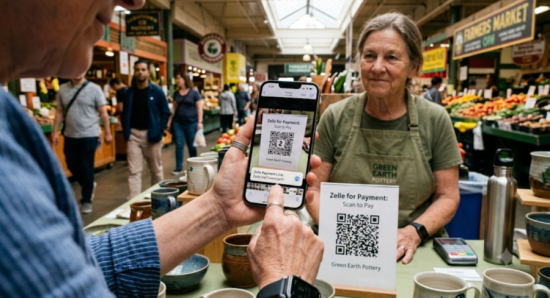
A Zelle QR code can make in-person payments easier for freelancers, contractors, local vendors, and other small businesses. The customer scans instead of manually entering an email address or phone number.
Here's the catch: official Zelle QR codes come from participating banks and credit unions. Not every financial institution offers them. A regular Zelle QR code generator can share your payment details, but it cannot create a new bank-linked Zelle code from an email address or phone number alone.
This guide explains the difference—and helps you choose the right option.

Does Zelle Have a QR Code?
Yes. Zelle supports personalized QR codes through participating bank and credit union apps. Users can scan a recipient's code, confirm the displayed name, enter an amount, and send money without typing the recipient's email address or U.S. mobile number.
Zelle now directs users to access its payment features through participating financial institutions rather than relying on the former standalone app. The QR code feature, however, is not available at every bank.
For a business owner, that creates two possible situations:
• Your bank provides an official Zelle QR code.
• Your bank does not provide one, so you need another way to share your Zelle payment information.
Those two codes are not interchangeable.
How Do You Get Your Official Zelle QR Code?
The exact labels vary, but the usual path looks like this:
1. Open your bank or credit union's mobile app.
2. Go to the Zelle section.
3. Select Send, Request, or Send & Request.
4. Look for the QR code icon near the recipient search area.
5. Open My Code or My QR Code.
6. Use the available option to share, save, email, or print the code.
Zelle's general instructions direct users to the QR icon from the Select Recipient screen and then to the My Code tab. Some banks place the feature elsewhere. U.S. Bank, for example, lists it under Zelle Preferences, while Bank of America places it near Pay and Request.
Use the code exported by your bank whenever it is available. Do not take a low-resolution screenshot if the app offers a proper share or print file.
Why Can't You Find a Zelle QR Code in Your Banking App?
You may be looking in the right place and still find nothing. Common reasons include:
Your bank does not support the feature.
Zelle states that QR codes are not available at all financial institutions. You can still receive payments using an enrolled U.S. mobile number or email address.
The menu has a different name.
Check Send, Request, Manage Recipients, Preferences, Settings, My Code, or Scan to Pay.
Your account is not eligible.
A bank may offer Zelle to personal accounts but limit business-account access, QR codes, or Zelle Tags. Eligibility depends on the financial institution and account type.
Your details are not fully enrolled.
Confirm that the email address or U.S. mobile number you plan to share is enrolled with the correct bank account.
Before searching for a third-party workaround, update the banking app and check your bank's own Zelle support page. The button may genuinely not exist for your account.
Can You Make a Zelle QR Code With a QR Code Generator?
You can use a QR code generator to share your Zelle payment details, but it cannot create an official, bank‑issued Zelle QR code linked to your account.
An official Zelle QR code comes from your bank's Zelle feature and connects directly to the bank's payment flow. A generator-made code only encodes information (such as your Zelle‑enrolled email or U.S. mobile number) for the payer to enter manually in their own banking app.
As a fallback, you can create an informational QR code with your business name and Zelle contact details—just label it clearly as a payment information QR code, not an official Zelle QR code.
What Should You Put in a QR Code for Zelle Payments?
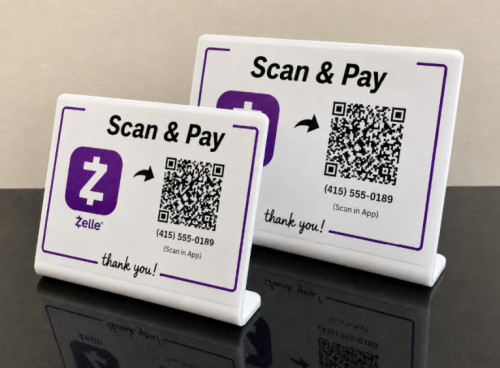
Do not make customers scan a mystery square and figure out the rest.
A useful payment-information QR code should contain:
• Your business or recipient name
• The email address or U.S. mobile number enrolled with Zelle
• Your Zelle Tag, when your bank and business account support one
• A short instruction such as "Open Zelle in your banking app and send payment to…"
• An invoice number or payment reference field, when relevant
A simple example:
Pay Northside Repairs through Zelle using payments@northsiderepairs.com. Confirm that “Northside Repairs” appears before sending.
For privacy, avoid placing a personal phone number in a publicly displayed code when a business email address or supported Zelle Tag is available. Some banks offer Zelle Tags specifically so eligible small businesses can receive payments without exposing personal contact details.
What Should You Check Before Printing a Zelle QR Code?
A QR code that works on your laptop is not automatically ready for a counter sign, invoice, or business card.
Run through this checklist first:
• Scan the final file. Test it from another phone before printing.
• Check the recipient identity. Make sure the expected business or recipient name appears in the bank's payment flow.
• Verify enrollment. The email, mobile number, or Zelle Tag must be connected to the intended account.
• Check business eligibility. Do not assume a personal account has the same Zelle features as a business account.
• Print a visible name beside the code. Customers should know who they are paying before they scan.
• Use enough white space. Do not crowd the edges with logos, text, or decorative borders.
• Replace outdated signs. A static code containing an old email address or phone number will keep sharing the old information.
• Label fallback codes honestly. Never describe a generator-created information code as an "official Zelle QR code."
Also, test the printed version—not just the digital preview. Glossy surfaces, tiny sizing, poor contrast, and folded invoices can all make an otherwise valid code annoying to scan.
Which Type of Zelle QR Code Should You Use?
Use your bank's official Zelle QR code whenever the feature is available. It provides the shortest path into the supported Zelle payment flow and reduces manual entry.
When your bank does not offer one, a clearly labeled information QR code can still help customers find the correct payment details. It works well on invoices, appointment cards, service counters, and event signage—but the customer may need to enter those details manually.
One rule is worth keeping: the QR code should remove confusion, not create it. Show your business name, keep the payment information current, and ask customers to confirm the recipient displayed in their banking app before sending money. Zelle likewise advises users to review the recipient name and send money only to people or businesses they trust.
Frequently Asked Questions
Does Zelle have a QR code like Venmo?
Yes, although access depends on the user's bank or credit union. The code is normally found inside the financial institution's Zelle payment interface.
Can I print my Zelle QR code?
Yes, when your banking app offers a print or share option. You can also print a generator-created payment-information code, provided it is clearly labeled and tested first.
Is a Zelle QR code generator the same as the bank's QR code?
No. A regular generator can encode payment instructions or enrolled contact details. It cannot independently issue or verify an official bank-linked Zelle QR code.
