



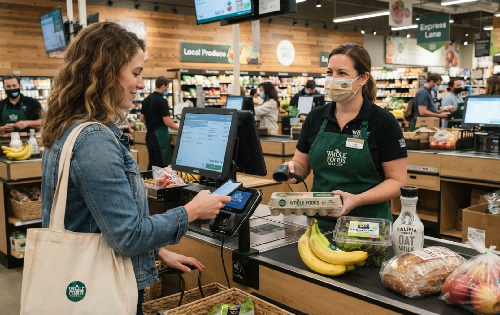
Looking for your Amazon QR code for Whole Foods but can't find it in the app? You are not alone. After recent layout updates, the blue Prime membership discount button (historically known as the "In-Store Code") seemingly vanished from the app's home screen, leaving many shoppers searching in frustration at the checkout register.
The good news is that the code has not been removed—it is just hidden deeper in the menu. This quick guide will show you exactly how to find your Whole Foods QR code in three seconds flat, along with easy workarounds for when your phone has no signal.
How to Find Your Whole Foods QR Code in the Amazon App
You can use either the Amazon Shopping app or the Whole Foods Market app to scan and activate your Prime savings at checkout.
Method 1: Via the Amazon Shopping App (Official Path)
According to official instructions, the primary and most direct way to access your code is through the home screen:
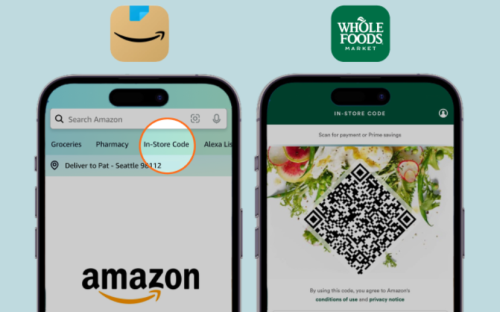
Source: Amazon official In-Store Code page
1. Open the Amazon Shopping app on your mobile device.
2. Locate the search bar at the top of the home screen.
3. Select In-Store Code directly underneath the Search Bar.
4. Scan the generated QR code at the register.
Method 2: Via the Whole Foods Market App
If you prefer using the dedicated grocery app, ensure you have the latest version installed:
1. Open the Whole Foods Market app and sign in with your Amazon account credentials.
2. Access the In-Store Code from the app interface.
3. Scan the code at any staffed lane or self-checkout terminal.
Alternative Navigation (If the Code is Missing from the Home Screen)
Due to app version updates or personalized layout tests, the "In-Store Code" link may occasionally be missing from beneath the home screen search bar. If you cannot see it, shoppers have reported success using these alternative paths:
• Search Bar Query: Type "Whole Foods in-store code" directly into the search bar of the Amazon app to bring up the shortcut link.
• The Groceries Tab: Navigate to the Groceries section of the Amazon app, tap the Whole Foods Market tab, and select In-Store Code from the menu options.
Why Is Your Whole Foods QR Code Not Working or Loading?
Supermarket buildings can block cellular signals, which may prevent your app from loading the dynamic QR code at checkout.
• Shopper Tip (Experiential Advice): Many customers recommend connecting your device to the store's free "Whole Foods Customer Wi-Fi" network before entering the checkout lane to help the app refresh and display the code. Please note that this is a practical troubleshooting suggestion from shoppers rather than a guaranteed step in the official checkout protocol.
How to Get Your Whole Foods Prime Discount Without Your Phone
If you are unable to open either mobile app at the register, you can still access your Prime savings through the following verified methods, depending on store and equipment availability.
1. Mobile Phone Number Lookup
You can apply your Prime savings by entering your verified mobile phone number at the register.
• Important Requirement: To use this option, you must first verify and activate your mobile phone number within the Whole Foods Market app settings before checkout. This lookup option may not be supported on all self-checkout terminals and varies by store location.
2. Amazon One Palm Scanning (Where Available)
In participating Whole Foods locations, you can enroll in Amazon One to link your Prime membership and payment card to your palm signature.
• How it works: Once enrolled at a designated store kiosk, you can hover your palm over the scanner at any supported checkout lane to automatically apply your Prime discounts and complete your purchase without needing your phone.
The Bottom Line
To ensure a smooth checkout experience, it is helpful to open either the Amazon Shopping app or the Whole Foods Market app to load your In-Store Code before you join the register line. If connectivity issues arise, remember that a verified phone number or Amazon One palm scan can serve as reliable alternatives where supported.
