




Book Creator is one of the best tools for bringing student creativity to life. But before your students can start designing their digital books, they need to join your virtual library. To do that, they need your Book Creator code.
If you are a teacher wondering how to generate, find, or share this code, you are in the right place. This guide will walk you through the process step-by-step, troubleshoot expired codes, and share a clever classroom hack to make joining your library completely painless for younger students.
How to Generate and Find Your Book Creator Invite Code
Your Book Creator library code, often called a class code or invite code, is a unique alphanumeric code that lets students join your specific library and is often a 5-character code.
Finding this code in your teacher dashboard takes less than a minute. Follow these simple steps:
1. Log In: Go to app.bookcreator.com and sign in to your Teacher account.
2. Select Your Library: Open the specific library you want your students to join.
3. Click "Invite Code": Look at the top right of your screen. You will see a blue button that says "Invite code" (or a button with a key icon). Click it.
4. Copy the Code: A pop-up window will reveal your 5-character code (for example: X9R3Q).
5. Optional - Copy the Link: In the same pop-up, you can click "Copy link". This generates a direct "magic link" that bypasses manual code entry for students who click it.
Note: Keep this code secure. Only share it with the students you want in your library.
Step-by-Step: How Students Join Using Your Code
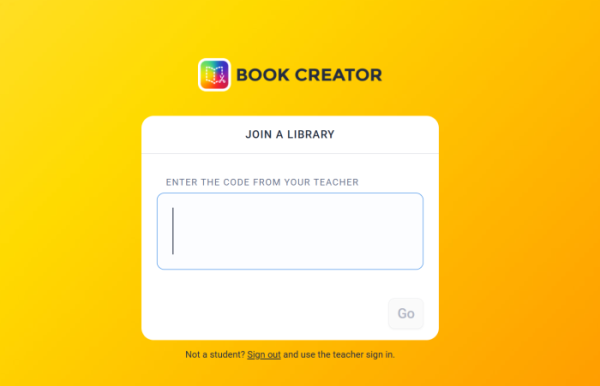
Once you have your code, it is time to share it with your class. You can copy and paste these simple instructions into your Google Classroom, LMS, or project slide:
1. Go to app.bookcreator.com.
2. Click the "Student sign-in" tab at the top of the screen.
3. Sign in using your school-approved method (Google, Microsoft, QR Badge, or Clever).
4. When prompted, type in the 5-character code provided by your teacher.
5. Click "Join Library".
Now, students can see your library and immediately click the "+ New Book" button to start creating!
What to Do If Your Book Creator Code Expires?
Did a student tell you that your code isn't working? Book Creator codes sometimes expire for security reasons, preventing unauthorized users from joining your classroom.
If your code has stopped working, don't worry. You can easily fix it:
1. Open your library in the teacher dashboard.
2. Click the "Invite code" button at the top right.
3. Click "Expire code". This deactivates the old code so nobody else can use it.
4. Click "Generate new code".
Book Creator will instantly give you a fresh 5-character code. Simply share this new code with any students who still need to join. Note: Students who have already joined your library will remain inside; they do not need to enter the new code.
Teacher Pro-Tip: Skip the Typing with a Classroom QR Code Poster
We all know the struggle of classroom management when twenty younger students try to type a 5-character code at the same time. Typo errors, lost log-in pages, and hand-raising can quickly eat up 15 minutes of your precious class time.
You can solve this friction entirely by turning your direct Book Creator join link into a physical Classroom QR Code.
Instead of typing, students simply open their iPad or Chromebook camera, scan the code on your classroom wall, and instantly arrive at your library.
How to Create Your Classroom QR Code in 30 Seconds:
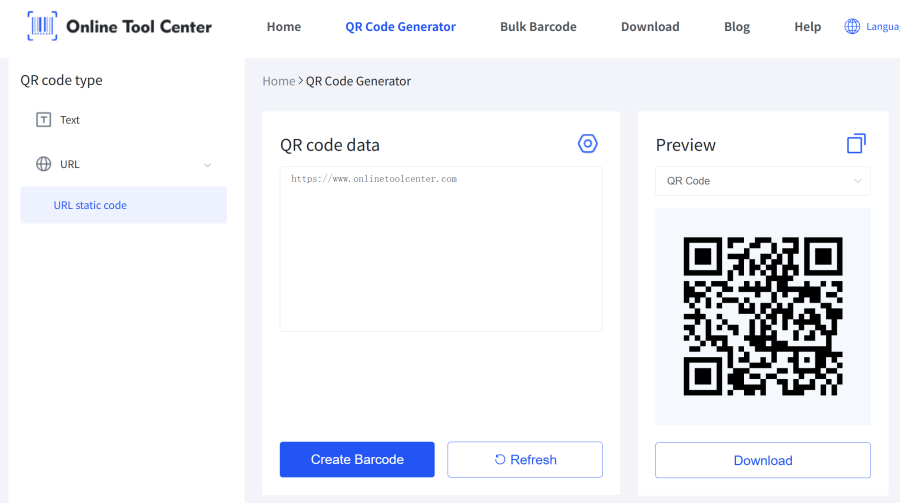
1. Get Your Link: In your Book Creator Teacher Dashboard, click "Invite code" and click "Copy link".
2. Go to Our Tool: Open our free QR code generator (insert your tool link here).
3. Paste the Link: Paste your Book Creator direct invite URL into the generator field.
4. Customize and Download: Choose a clean, easy-to-scan design. You can even add a frame that says "Scan to Join!" to make it clear for students.
5. Print and Display: Print the QR code and tape it to your classroom door, whiteboard, or student desks.
By using a custom QR code, you eliminate typing errors, save learning time, and make your classroom tech integration smoother than ever.

Ready to simplify your next lesson?
Don't let lost codes slow down your classroom creativity. Head to your teacher dashboard to grab your code, and then use our free QR code maker to create a scan-and-go poster for your classroom today!
