



Need to scan a QR code that is already displayed on your iPhone screen? You don't have to print it, borrow another device, or download a third-party scanner. Whether the code is in a mobile browser, an email, or a video, your iPhone has built-in tools to handle it.
Can You Scan a QR Code on an iPhone Without Using the Camera?
Yes. You can scan any QR code as long as it is visible on your screen or saved in your photo library. While Apple's "Code Scanner" in the Control Center still requires the camera hardware to read external codes, the Photos app and Live Text feature allow you to extract links directly from images internally.
This means that even if your camera hardware is broken, you can still scan QR codes that are already stored as screenshots or saved photos.
How to Scan a QR Code That Is Already on Your iPhone Screen
The most efficient workflow follows two simple steps: first, capture the code; second, extract the link.
Step 1: Save the QR Code to your Photos App
Depending on where the code appears, use the best method to "get" the image:
• On a Webpage or App (Safari, Chrome, Instagram): Take a screenshot. On Face ID models, press the Side button and Volume Up button simultaneously.
• In Messages or Email: Touch and hold the image attachment and select Save to Photos.
• In a Video (YouTube, TikTok): Pause the video on a clear, full-frame view of the QR code, then take a screenshot.
• Already in your Gallery: If it's an old photo, you're already set for the next step.
Step 2: Scan the Code Using Photos or Live Text
Once the image is in your gallery, use one of these two native iOS methods:
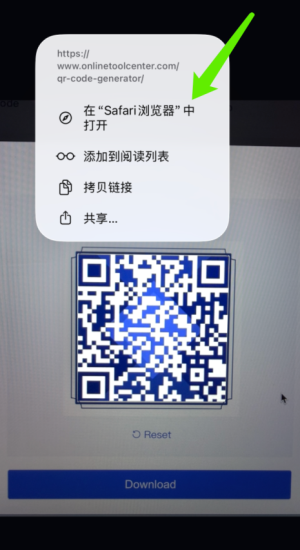
Method 1: The Touch-and-Hold Action (Easiest)
1. Open the Photos app and select the image.
2. Touch and hold directly on the center of the QR code.
3. A pop-up menu will appear. Tap the action, such as Open in Safari, Join Network, or Add to Contacts.
Method 2: Use the Live Text (Detect Text) Button
If the long-press doesn't work, look for the Live Text icon (a small square with three lines) in the lower-right corner of the image. Tap it, and iOS will highlight the QR code. You can then tap the code to trigger the linked action.
Note: Live Text requires an iPhone XS, iPhone XR, or later running iOS 15 or newer.
Why a QR Code in Photos Might Not Scan (and How to Fix It)
If your iPhone isn't recognizing a code within an image, it usually comes down to one of these common issues:
• The Code is Too Small or Blurry: Crop the screenshot to focus only on the QR code. Ensure the three large corner markers are fully visible and sharp.
• Heavy Compression: Images sent via certain messaging apps can become "fuzzy." If possible, ask the sender for a high-quality screenshot or the direct URL.
• Unsupported File Format: If iOS struggles with a specific file type, take a fresh screenshot of that image while it's displayed full-screen. This creates a clean, standard file that is easier for Detect Text to read.
• Device Limitations: If you are using an older model like the iPhone 8 or iPhone X, you may lack the Neural Engine required for Live Text. In this case, use Google Lens (via the Google app or Google Photos), which supports image-based QR scanning on older hardware.
What Can You Do If Live Text Still Does Not Scan the QR Code?
Try these in order:
1. Take a fresh screenshot and crop around the code.
2. Enlarge it while keeping every edge visible.
3. Open the image with Google Lens through Google Photos, the Google app or Chrome. Google supports using Lens with images from an iPhone's photo library.
4. Ask the sender for the URL, Wi-Fi details or setup code.
5. For two-factor authentication, look for an option such as Enter setup key manually. Apple supports manual setup keys when a QR code cannot be scanned.
6. Use an online QR image decoder only as a last resort.
Do not upload payment codes, login QR codes, tickets, eSIM codes or account-verification images to an unknown website. Check the destination domain before opening any QR link.
Can You Scan a QR Code If the iPhone Camera Is Broken?
Yes—if the QR code is already stored as a photo or screenshot and the iPhone supports the required image-recognition feature. Photos does not need to capture the code again.
It cannot read a code that exists only on paper, a product label or another physical screen. For that, you still need a working camera. Ask for the QR image, original link or manual code instead.
Creating a QR code for a menu, event, product page, or printed label is just as simple. Try our free QR code generator to create and download one without installing an app.

Frequently Asked Questions
1. Can I scan a QR code from my iPhone gallery?
Yes. Open the image in Photos and touch and hold the QR code. If no action appears, tap the Live Text icon and try again.2.
2. Do I need an app to scan a QR code from a screenshot?
Usually not. On a supported iPhone, Photos and Live Text can recognize a QR code from a screenshot without a separate scanner app.
3. Why does long-pressing a QR code do nothing?
The image may be blurry, too small, compressed or unsupported by the device. Try Live Text, crop the image, take a new screenshot and check that your iPhone supports Live Text.
