



Overview & Setup
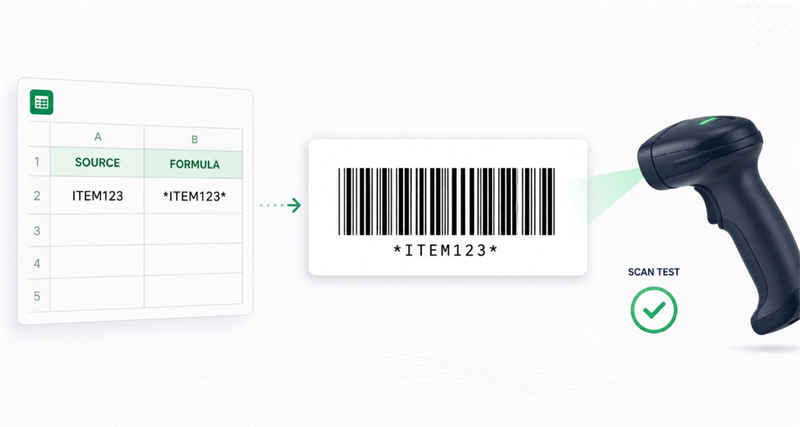
To generate a Code 39 barcode in Excel or Google Sheets, wrap the source value with asterisks using the formula ="*"&A2&"*" (converting ITEM123 to *ITEM123*) and apply the Libre Barcode 39 or Libre Barcode 39 Text font. The asterisks provide the mandatory start and stop characters; simply changing the font without them will produce an unscannable barcode.
Verification & Testing
Libre Barcode 39 is purely a visual display font, not a barcode verifier. Because it cannot check print contrast, quiet zones, or bar-width accuracy, you must always print a sample and test it with your physical scanner before full deployment.
How to Create a Libre Barcode 39 Barcode in Excel
For Microsoft Excel, install the required Libre Barcode 39 font before opening the spreadsheet. If Excel was already running during installation, restart it so the font appears in the font list.
The most reliable worksheet structure uses separate columns for source data and barcode data.
Column A: Original ID | Column B: Barcode formula |
ITEM123 | ="*"&A2&"*" |
BIN-204 | ="*"&A3&"*" |
ASSET88 | ="*"&A4&"*" |
Follow these steps:
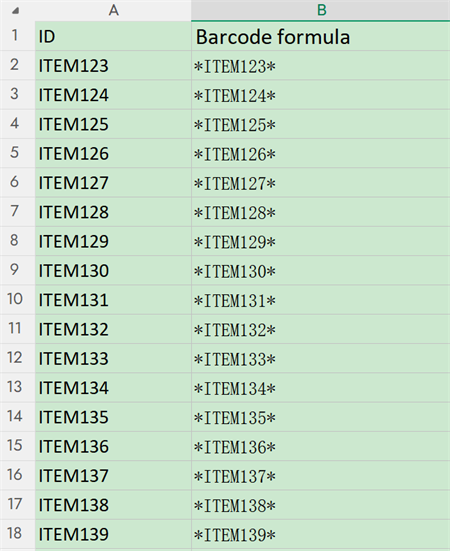
1. Enter the original IDs in column A.
2. Add ="*"&A2&"*" in column B.
3. Copy the formula down the column.
4. Select the results in column B.
5. Apply Libre Barcode 39 or Libre Barcode 39 Text.
6. Increase the font size and adjust the column width.
7. Print a sample and test it with the intended scanner.
Keeping the original ID and barcode formula in separate columns makes the spreadsheet easier to update and troubleshoot.
Converting lowercase data in Excel
Standard Code 39 does not support lowercase letters. If letter case does not affect the identifier, use:
="*"&UPPER(A2)&"*"
This converts the value to uppercase before adding the start and stop characters.
Do not use this formula when item123 and ITEM123 represent different records. In that case, use Libre Barcode 39 Extended and confirm that the scanner supports Extended Code 39.
How to Use Libre Barcode 39 in Google Sheets
Google Sheets includes Libre Barcode fonts in its font library, so local installation is usually unnecessary.
To add the font:
1. Open the font menu.
2. Select More fonts.
3. Search for “Libre Barcode.”
4. Add the required Code 39 font.
5. Select OK.
Enter the original value in A2 and the following formula in B2:
="*"&A2&"*"
Apply the barcode font to B2 and fill the formula down the column.
Use Libre Barcode 39 Text if you want the encoded identifier shown below the bars. This can help employees identify a label manually when a scanner is unavailable.
Before exporting the sheet to PDF, check that the barcode remains fully visible. Page scaling, narrow columns and clipped cells can change the printed output even when the barcode scans correctly on screen.
Why Is Libre Barcode 39 Not Scanning?
A barcode that appears correct can still fail because of its data, layout or print output. Check these causes in order.
1. Missing start and stop characters
Confirm that the encoded value contains an asterisk at both ends:
• Correct: *ITEM123*
• Incorrect: ITEM123
Apply the barcode font to the complete value, including both asterisks.
2. Unsupported characters
Standard Libre Barcode 39 supports uppercase letters, numbers and a limited group of symbols. Lowercase letters, underscores and many punctuation marks require Extended Code 39 or a different barcode symbology.
Inspect the original cell rather than only looking at the rendered bars. Hidden spaces or unexpected characters imported from another system can also change the result.
3. Wrong font variant
Libre Barcode 39 and Libre Barcode 39 Text support the standard Code 39 character set. Extended and Extended Text support Full ASCII input.
If an Extended barcode returns unexpected combinations such as plus signs followed by uppercase letters, check whether Full ASCII or Extended Code 39 is enabled in the scanner settings.
4. Insufficient white space
Keep a clean white area before the first bar and after the last bar. Cell borders, text, graphics and label edges placed too close to the barcode can interfere with detection.
5. Barcode cropped or compressed
Make sure the entire barcode fits inside the cell and printed label. Code 39 becomes wide as more characters are added. Compressing a long value into a narrow area can make its bars difficult to reproduce accurately.
For long data or limited label space, Code 128 is usually more compact.
6. Print or PDF scaling
A barcode may scan from the screen but fail after printing. Check whether:
• Excel used Fit Sheet on One Page;
• the PDF viewer added another scaling step;
• the barcode was converted into a low-resolution screenshot;
• the printer produced broken or blurred bars;
• the label has weak contrast or a patterned background.
Print at actual size when possible and test the physical label rather than relying only on an on-screen preview.
Font-Based Barcode or Generated Image?
Libre Barcode 39 Text for Excel is suitable when barcodes must update automatically with spreadsheet values. A generated barcode image is preferable when the barcode must be downloaded, emailed, placed in design software or opened on computers that may not have the font.
An online Code 39 barcode generator is also useful for troubleshooting. Generate the same value online and scan both versions. If the image scans but the Excel version does not, the problem is probably related to the spreadsheet font, layout, PDF export or printing process.

Pre-Print Checklist
Before printing a Libre Barcode 39 barcode:
✔ Add an asterisk before and after the data
✔ Use uppercase letters unless Extended Code 39 is required.
✔ Confirm that every character is supported.
✔ Leave white space on both sides.
✔ Avoid stretching or compressing the barcode.
✔ Check PDF and print scaling.
✔ Test the physical label with the actual scanner.
Following this process makes Libre Barcode 39 a practical option for creating short asset IDs, inventory labels and internal tracking barcodes directly from Excel or Google Sheets.
