



Quick Answer
To get your Facebook URL, open your profile, page, or post. On desktop, copy the link from the browser address bar. On mobile, tap "Share" and select "Copy Link." You can then use this link for sharing, QR codes, or adding to your website.
What Is a Facebook URL?
A Facebook URL is simply the direct link to your profile, page, or a specific post.
It usually looks like this:https://www.facebook.com/yourusername
Think of it as your digital address on Facebook. Anyone with this link can access your content instantly.
How to Get Your Facebook Profile URL
Let's start with the most common situation—finding your personal profile link.
On Desktop
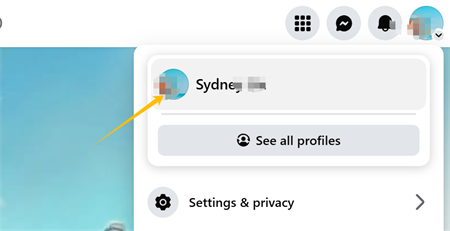
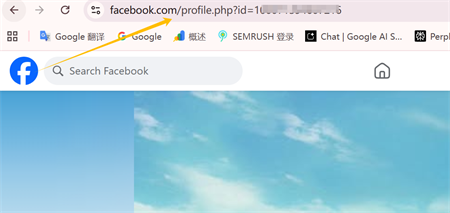
1. Log in to Facebook
2. Click your profile picture
3. Copy the URL from the browser
On Mobile (iPhone & Android)
1. Open the Facebook app
2. Go to your profile
3. Tap the three dots, then select Copy Link
That's it. Once copied, you can share your profile anywhere.
How to Get a Facebook Page URL (Business)
If you're running a business or managing a brand, you'll be working with a Facebook Page instead of a personal profile.
Steps
1. Open your Facebook Page
2. Click on the page name
3. Copy the link from the address bar
This is the link you'll use for marketing, customer engagement, and promotions.
How to Get a Facebook Post Link
Sometimes, sharing your whole profile isn't necessary. You might only want to send a specific post.
Steps
1. Find the post
2. Click the timestamp (like “2 hours ago”)
3. Copy the URL
This is especially useful for sharing promotions, announcements, or viral content.
How to Copy a Facebook Link from the App
If you're using your phone, the process looks a bit different.
Instead of a visible URL, Facebook gives you a shortcut:
• Tap Share
• Select Copy Link
This works for profiles, pages, and posts, and is usually the fastest method on mobile.
Why You Can't Find Your Facebook URL
If this process ever feels confusing, you're not alone. Most issues come down to small details.
• The mobile app hides the actual URL
• You haven't set a username yet
• You're viewing the wrong section (like the feed instead of your profile)
Once you know where to look, it becomes second nature.
Facebook URL vs Username (What's the Difference?)
This is a common point of confusion, especially for new users.
• Username: a customizable handle you can set for your profile or page. It may appear as part of your public link, but not all accounts have one.
• Facebook URL: the full web address that links to your profile, page, or post. Depending on your settings, it can include a username, a page name, or sometimes a numeric ID.
In short, a username helps create a cleaner and more memorable URL, but your Facebook link will work even without one.
How to Use Your Facebook URL (Real-World Applications)
Getting your Facebook URL is just the first step. The real value comes from how you use it.
Here are some practical ways:
• Add it to your website
• Include it in your email signature
• Share it with customers or clients
• Turn it into a QR code
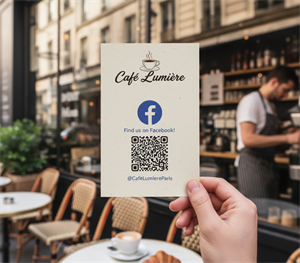
For example, many event organizers use QR codes to simplify access to their Facebook event pages.
Instead of asking people to search manually, they place a QR code on posters or tickets.
Users can simply scan the code to access the page instantly, removing friction and making engagement much easier.
How to Generate QR codes for Your Facebook URL
Once you have your Facebook URL, turning it into a QR code is surprisingly easy. This is one of the fastest ways to make your profile or page instantly accessible—especially in offline scenarios.
Instead of using complicated tools, you can simply try our free online QR code generator. It's designed to be beginner-friendly while still offering advanced customization options.
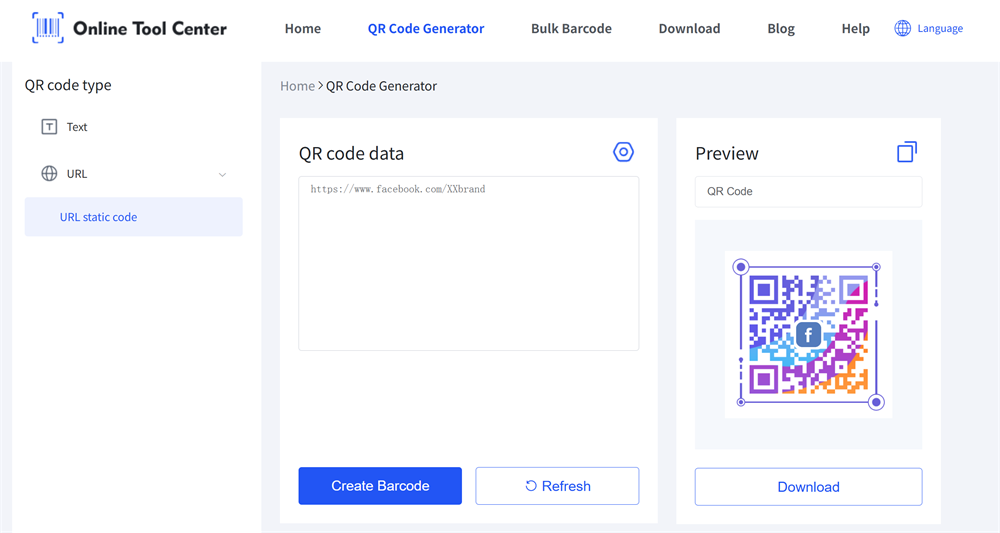
Here's what makes it a practical choice:
• No watermark on your QR codes
• No sign-up required
• Free download in JPG, PNG, and vector (SVG) formats
• Easy customization (add logo, change colors, adjust frames)
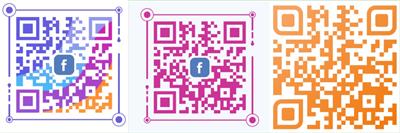
Quick Steps to Generate a QR Code for Your Facebook Link
1. Copy your Facebook URLMake sure it's the correct profile, page, or post link.
2. Paste it into a QR code generatorUse an online tool like QR Code Generator to create your code instantly.
3. Customize if neededAdd a logo or adjust colors to match your brand (helps improve scan trust).
4. Download & testSave it in PNG or SVG, then scan it once to confirm it works.
A QR code for Facebook removes the need to type long links, making it much easier for people to connect with you.
It's especially useful for:
• Business cards
• Product packaging
• Posters and flyers
• Restaurant menus
• Event signage
Best Practices Before Sharing Your Link
Before you start using your Facebook URL, make sure:
• Your link works on both mobile and desktop
• Your profile or page is public (if needed)
• You've set a clean username
• You test it before printing or sharing
For official recommendations, you can also check resources from Meta.
FAQ
Where do I find my Facebook URL?
Go to your profile or page and copy the link from the browser or use "Copy Link" in the app.
How do I copy my Facebook profile link on mobile?
Open your profile, tap the three dots, and select "Copy Link.
Can I customize my Facebook URL?
Yes. You can set a username in your profile settings to create a custom link.
What's the difference between a profile and a page URL?
A profile URL is personal, while a page URL is used for businesses, brands, or public figures.
Final Thoughts
Getting your Facebook URL takes just a few seconds, but it can open up a lot of opportunities.
Whether you're sharing your profile, promoting a business, or connecting offline audiences through QR codes, that simple link becomes a powerful tool.Once you understand how it works, you'll probably use it more often than you expect.
