



Your product packaging arrives from the factory. You try to scan the code, but nothing happens. The culprit? A low-quality PNG barcode. Blurry edges prevent scanners from reading the data. This error leads to rejected shipments and costly reprints. To avoid this, professional designers use barcode vector files.
Why Vector Files are Essential for Barcode Printing
The Critical Difference: Raster (PNG/JPG) vs. Vector (SVG/EPS) Barcodes
Raster images use pixels. When you enlarge a PNG, the edges become jagged and "fuzzy." Scanners require sharp, high-contrast lines to function. Vector files use mathematical paths rather than pixels. You can scale a vector barcode from a tiny label to a giant billboard without losing any sharpness.
Ensuring 100% Scannability for Retail and Logistics
Barcode scanners measure the gaps between bars. If a barcode is blurry, the light reflects poorly. This causes "no-reads" in warehouses and retail checkouts. Using vector formats like SVG or EPS guarantees that every line remains crisp. This geometric precision is vital for meeting international scanning standards.
Top Vector Formats for Barcodes: Which One Should You Choose?
In practice, the choice of vector format directly affects compatibility, print accuracy, and workflow efficiency. The table below outlines how the main formats differ.
| Format | Best Use Case | AI/Software Compatibility |
| SVG | Web-based tools and modern digital apps | High (Browsers, Figma, Canva) |
| EPS | High-end professional offset printing | High (Adobe Illustrator, InDesign) |
| Universal sharing and print shop review | Universal (Acrobat, All Platforms) |
SVG (Scalable Vector Graphics) for Web and Modern Design
SVG is perfect for digital integration. These files are lightweight and code-based. They work natively in web browsers and modern design tools like Figma. If you need a barcode for a digital invoice or a modern labels-on-demand printer, SVG is the best choice.
EPS (Encapsulated PostScript) for Professional Desktop Publishing
EPS remains the industry standard for traditional printing. It handles CMYK color profiles better than most formats. Professional designers use EPS in Adobe InDesign or CorelDRAW to ensure the black ink is 100% solid. This prevents "color bleeding" during the printing process.
PDF (Portable Document Format) for Universal Sharing
PDF is the most accessible vector format. It preserves vector paths while being viewable on any device. If you are sending a file to a print shop and are unsure of their software, a vector-based PDF ensures they see exactly what you designed.
Common Barcode Symbologies Available in Vector Format
EAN-13 & UPC-A: The Gold Standard for Retail Packaging
EAN-13 and UPC-A are the most common barcodes for consumer goods. These 1D barcodes encode Global Trade Item Numbers (GTINs). Retailers worldwide require these standards for products sold in stores.
Code 128 & ITF-14: Powering Logistics and Supply Chains
Code 128 is highly versatile. It encodes both letters and numbers, making it ideal for shipping labels. ITF-14 is often used for the outer shipping cartons. Its thick border helps scanners read the code even on rough corrugated cardboard.
QR Codes: Beyond 1D for Marketing and Dynamic Linking
QR codes are 2D barcodes that hold much more data. They are popular for linking to websites, digital menus, or app downloads. Generating QR codes in vector format ensures the small square modules remain perfectly square for easy smartphone scanning.

Step-by-Step: How to Generate a High-Resolution Barcode Vector Online
Creating industrial-grade barcodes is simple. Follow these steps using the professional online barcode generator tool at Online Tool Center:
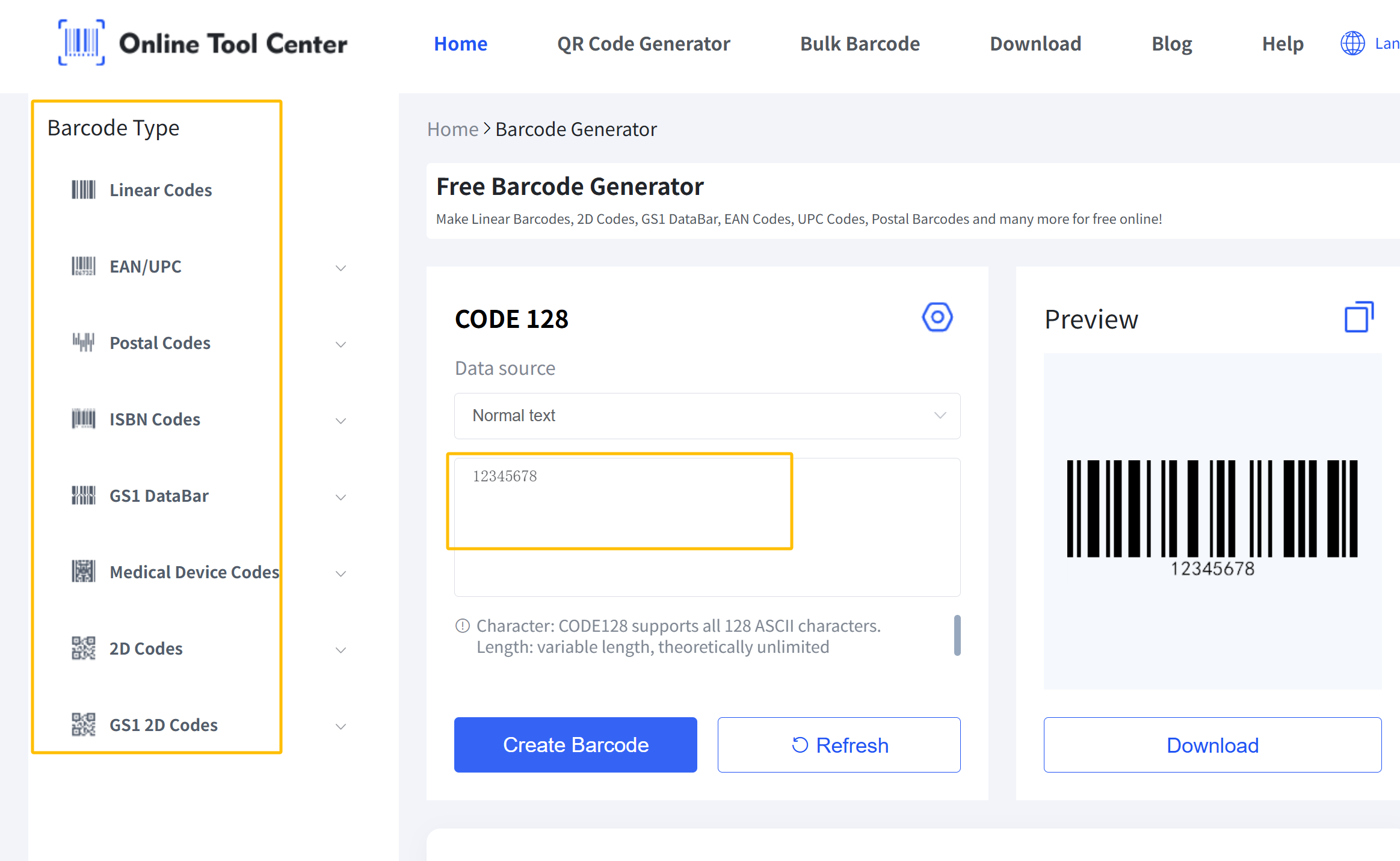
Step 1: Navigate to the Barcode Generator at OnlineToolCenter.com
Visit the Barcode Generator section on the website. The interface is clean and works directly in your browser without any software installation.
Step 2: Select Your Required Barcode Symbology
Choose the correct type for your project. Pick EAN-13 for European retail, UPC for North America, or Code 128 for logistics. Each type follows specific ISO standards.
Step 3: Input Your Data and Customize Specifications
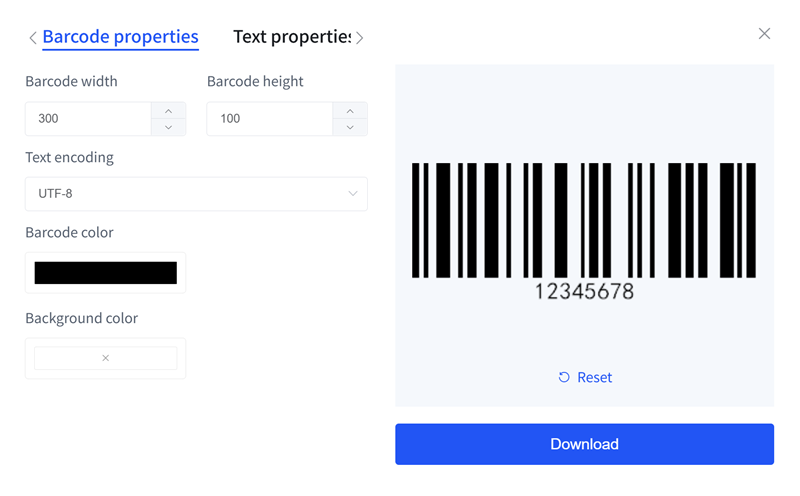
Enter your barcode numbers. You can also adjust the bar height and width. Professional users often tweak these settings to fit specific label dimensions without breaking scannability rules.
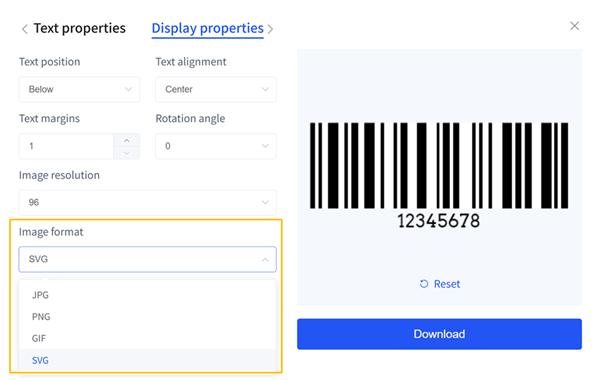
Step 4: Choose a Vector Output Format
Instead of clicking PNG, select SVG or PDF. This step is crucial. Choosing a vector format ensures your file is "print-ready" and won't blur during the manufacturing phase.
Step 5: Instant Download and Quality Verification
Click download to get your watermark-free barcode vector file instantly. You can now import this file into professional design software like Adobe Illustrator. The lines will remain perfectly sharp at any zoom level.
Professional Best Practices for Barcode Design and Printing
The "Quiet Zone" Rule: Avoiding Scanning Interference
Every barcode needs a "Quiet Zone." This is the empty white space on the left and right sides. If you place text or images too close to the bars, the scanner gets confused. Always leave at least 10 times the width of the narrowest bar as a margin.
Color Choice and Contrast: Why Black and White is Essential
Scanners use red light to read codes. Red backgrounds appear white to the scanner, making the code invisible. Stick to high-contrast combinations. Solid black bars on a white background provide the highest reliability across all hardware.
Understanding Bar Width Reduction (BWR) for Ink Spread
When ink hits paper, it spreads slightly. This is called "ink gain." It makes black bars thicker and white gaps thinner. Expert designers use Bar Width Reduction (BWR). They slightly shrink the bars in the vector file to compensate for the spread during high-speed printing.
FAQ: Common Questions About Barcode Vector Files
1.Can I resize a barcode SVG without losing its scannability?
Yes. SVG is a vector format, so it scales infinitely. However, always maintain the aspect ratio. Never stretch a barcode horizontally or vertically, as this changes the mathematical relationship between the bars.
2.How do I verify if my vector barcode is GS1 compliant?
First, ensure your data matches your GS1 assigned numbers. Second, check your "Quiet Zone" and bar dimensions. Using a standard tool like Online Tool Center helps maintain these technical requirements automatically.
3.Can I convert a PNG barcode into a vector file?
Avoid using "Auto-Trace" tools. They create irregular paths and rounded corners. These imperfections cause scanning errors. It is always safer to generate a new vector file using the original barcode numbers in a dedicated barcode generator.
Key Takeaways
A barcode vector file is essential for achieving consistent scan performance and print quality. Using the right format—such as SVG, EPS, or PDF—keeps barcodes sharp, scalable, and compliant with industry requirements across packaging, labeling, and logistics.
Combined with a reliable barcode generator, the correct format helps prevent scanning issues before they reach production. A well-generated vector file ensures reliable performance across both digital design and printed output.
