



What a GTIN Creator Does
You already have a GTIN, UPC, or EAN. If you're labeling inventory for retail, fulfillment, or warehouse operations,you need a barcode that prints cleanly and scans reliably—without wrestling with design software or guessing the right settings.
A GTIN creatorlets you convert an existing product number (GTIN/UPC/EAN) into a scannable barcode image that you can download and place on product labels, packaging, or shipping stickers. If you want to do this in seconds, a free online GTIN creator is the fastest and easiest option. Just follow the workflow below.
We recommend using our free online barcode generator. It requires no installation, works on both desktop and mobile devices, and supports generating GTIN-8 (EAN-8), GTIN-12 (UPC-A), GTIN-13 (EAN-13), and GTIN-14 (ITF-14) barcodes.
Important: If you do not yet have an official GTIN or UPC number, you must obtain one from GS1 or an authorized source first. Do not create random numbers, as they will be rejected by Amazon and major retailers.
Create your GTIN barcode now—just follow the steps below.
How to Use a GTIN Creator (Fast Workflow)
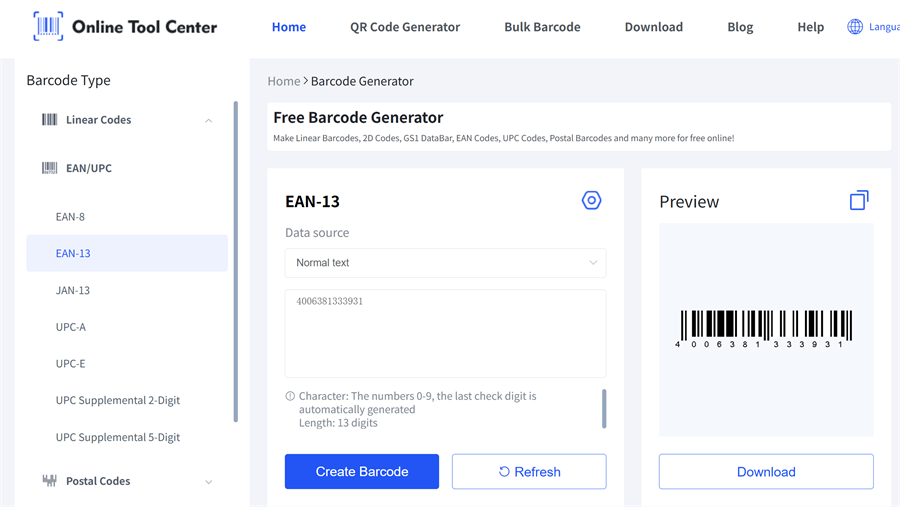
Step 1 — Enter Your GTIN/UPC/EAN
Type or copy and paste your product number into the GTIN barcode creator.
Quick input tips:
• Remove extra spaces
• Avoid mixing multiple numbers in one field
• If you have variants (size/color), make sure each variant has the correct number before generating barcodes
Step 2 — Select the Correct GTIN Barcode Type
Most tools let you pick the barcode type. Choose the format that matches your number and selling region.
Common cases:
• UPC-A (GTIN-12) — Widely used in North America for retail products (12 digits).
• EAN-13 (GTIN-13) — Commonly used internationally for retail items (13 digits).
• EAN-8 (GTIN-8) — Used for small products with limited packaging space (8 digits).
• ITF-14 (GTIN-14) — Used for cartons and bulk packaging, not individual retail items (14 digits).
Step 3 — Preview the Barcode (Don't Skip This)
Before downloading or printing, confirm:
• The digits shown under the barcode match your input exactly
• The bars aren't cut off or squeezed
• The barcode looks crisp (not blurry)
If the barcode format doesn't look right, adjust the barcode settings as needed. Our barcode generator allows you to customize barcode size, color, and margins, so you can fine-tune the output for your label or packaging.
Step 4 — Download the Barcode for Printing
Download the barcode in a format that fits your workflow. Many online tools offer common options such as:
• PNG (easy for most label editors and documents)
• SVG (best for scaling without losing sharpness)
If your GTIN creator offers multiple formats, prefer vector formats (like SVG) for print when possible—especially if you need to resize the barcode. PNG is also excellent for standard labeling, provided the resolution is high enough (300 DPI+).
If you're labeling just one product, you're done.But if you have a catalog, multiple variants, or lots of SKUs, batch preparation is the real time-saver.
How to Bulk Generate GTIN Barcodes (CSV/Excel Workflow)
Sometimes you may need to generate 10, 20, or even dozens of barcodes at once. In these cases, bulk barcode generator tool becomes essential.
When batch makes sense
• You're launching multiple new products
• You have many color/size variants
• You're labeling inventory for a retail or warehouse process
Our GTIN creator supports batch barcode generation, allowing you to create up to 100 clear, professional barcode images at once, with output formats such as PNG and JPG.
So how to bulk generate GTIN barcodes?
1.Prepare Your CSV / Excel File (Simple and Effective)
Minimum required:
• GTIN (or UPC / EAN)
Recommended
• SKU (internal identifier)
• Product Name
• Variant (size/color)
• Quantity (how many labels to print)
2.Pre-check checklist (saves label waste)
Before generating or printing your barcodes, make sure that:
✅ Each number has the expected digit length for your barcode type
✅ No duplicates (unless intentionally reusing for the same item)
✅ No stray characters (spaces, commas, extra symbols)
✅ Each variant maps to the correct GTIN/UPC/EAN
3.Generate and Download Your Barcodes
Once your file is ready, simply generate the barcodes following the steps above.
The barcode tool will create a ZIP file containing all generated barcode images—just unzip it to access and use your barcodes immediately.
Troubleshooting: Why Your GTIN Barcode Won't Scan
1) Wrong number length or wrong barcode type
Symptom: The tool errors out, or the barcode scans incorrectly.
Fix: Confirm you selected the barcode type that matches your number and market (UPC vs EAN). Make sure you didn't paste extra digits or symbols.
2) Invalid check digit
Symptom: The number “looks right,” but systems reject it or scanners behave inconsistently.
Fix: Re-check the source number. If your tool offers validation, use it. If not, confirm the GTIN/UPC/EAN from the system that issued it.
3) Quiet zone gets cut off
Symptom: The barcode prints, but scanners struggle.
Cause: The blank margin around the barcode (quiet zone) is too small or trimmed by label edges.
Fix: Don't place borders, text, or graphics too close to the bars. Leave clean padding on both sides.
4) Poor print quality or low contrast
Symptom: Barcode scans on-screen but fails on the label.
Fix: Use darker print, avoid glossy glare, and increase print quality. If you're using thermal label printers to produce these labels, make sure darkness/speed settings produce sharp edges.
Printing Best Practices (So Your Barcode Scans Reliably)
✔️Print at 100% scale (avoid “Fit to page”)
✔️Don't stretch the barcode horizontally or vertically
✔️Use clean, high-contrast output (dark bars on light background)
✔️Test scan a sample label before printing a full batch
✔️Keep labels flat (wrinkles and curves reduce scan reliability)
GTIN Creator FAQ
Q1: Can I create a GTIN for free with a GTIN creator?
A GTIN creator usually creates the barcode symbol, not the official GTIN number. If you already have a GTIN/UPC/EAN, you can generate the barcode for free.
Q2:Which format is best for printing: PNG, SVG, or PDF?
For print and resizing, SVG/PDF (vector) is often best if available. PNG is widely compatible for basic label needs.
Q3:Why won't my barcode scan after printing?
Most issues come from: wrong barcode type, invalid digits, the barcode being too small, quiet zone cut off, or poor print contrast.
Q4:EAN vs UPC—how do I choose?
Use the format required by your selling region and retailer/platform. If your number is already assigned as UPC or EAN, generate the matching barcode type.
Try our GTIN creator now, generate your barcode, download it in PNG or SVG format, and start labeling your products with confidence today.

