



Managing office equipment and IT assets—laptops, monitors, furniture, and tools—becomes difficult fast without a structured tracking system. Manual spreadsheets break easily, leading to missing items, inaccurate records, and wasted time. A simple solution is to build an internal inventory barcode system using a reliable asset tag barcode generator.
Unlike retail barcodes that require GS1 registration, internal asset tracking lets you create your own identifiers and barcode format.This guide explainswhy Code 39 is the industry standard for this purpose and show you how to use our Bulk Barcode Generator to create professional asset tags in minutes.
Retail vs. Internal Management: Understanding the Difference
Before diving into the "how-to," it is important to understand that asset tracking is different from selling products on Amazon.
• Retail (UPC/EAN): Requires purchased codes from GS1. These are strictly numeric and used for point-of-sale scanning.
• Internal Asset Tracking (Code 39/128): You are the boss. You can create your own numbering system (e.g., IT-DEPT-001). You do not need to register these codes anywhere because they are only scanned within your organization.
This flexibility allows you to create serialized asset tags free of charge using online tools, saving your business significant money.
Why Code 39 is the King of Asset Tracking
When using an asset tracking barcode generator, you will see many barcode types. However, Code 39 (also known as Code 3 of 9) remains the most popular choice for non-retail use cases, such as government, military, and enterprise asset management.
Here is why you should choose a Bulk barcode generator code 39 tool for your project:
1. Alphanumeric Support: Unlike UPC (numbers only), Code 39 supports numbers (0-9), uppercase letters (A-Z), and some special characters (- . $ / + % space). This means your barcode can read LAPTOP-01 instead of just 527866.
2. High Tolerance & Reliability: Code 39 is self-checking and has a wide bar width. This makes it incredibly "rugged." Even if the label is slightly damaged or printed on a lower-quality printer, it remains scannable.
3. No Check Digit Required: While you can add a check digit, Code 39 does not strictly require one, simplifying the data generation process for internal teams.
Note: You might wonder about Code 39 vs Code 128 for assets. While Code 128 is more compact (taking up less space), Code 39 is often preferred for human readability and compatibility with older legacy scanners.
Scenario: The IT Department's 100-Laptop Challenge
Let's walk through a real-world scenario. Imagine you are an IT Manager who just received 100 new laptops. You need to tag them immediately for insurance and assignment purposes.
Here is how to solve this using our Code 39 bulk generator:
Step 1: Prepare Your Data
Open Excel or Google Sheets. Create a list of sequential unique identifiers. For example, if you want to track the department and the item number, your list might look like this:
IT-LAP-001
IT-LAP-002
...
IT-LAP-100
This method follows a standard serialized asset tagging workflow commonly used in internal inventory systems, ensuring consistency across departments.
Step 2: Use the Bulk Barcode Generator
Navigate to our free online Bulk Barcode Generator page.
• Select Type: Choose Code 39 from the barcode standard list.
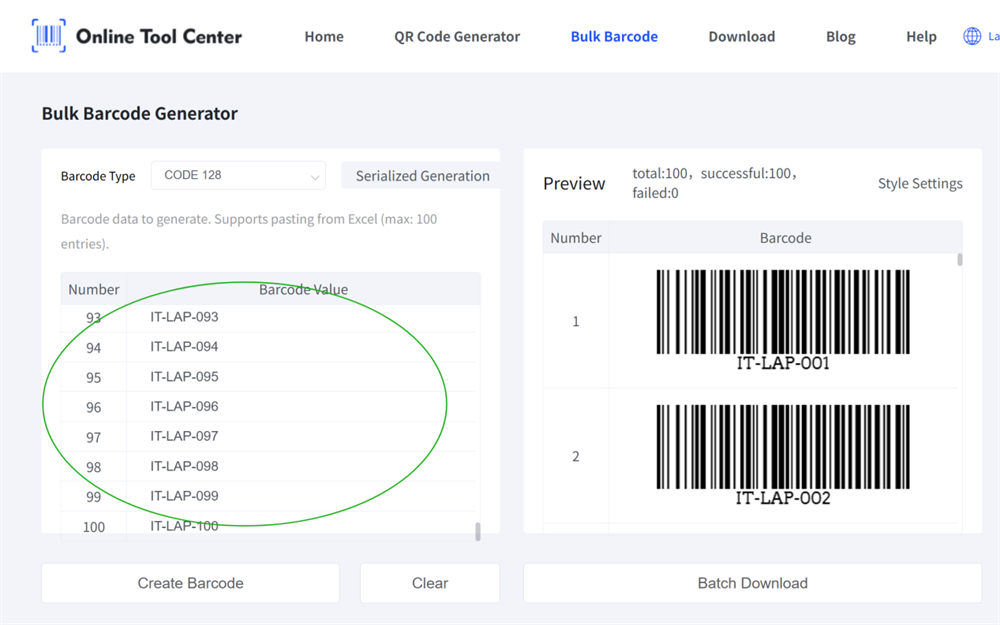
• Input Data: Copy your column of 100 serial numbers from Excel and paste them into the input box.
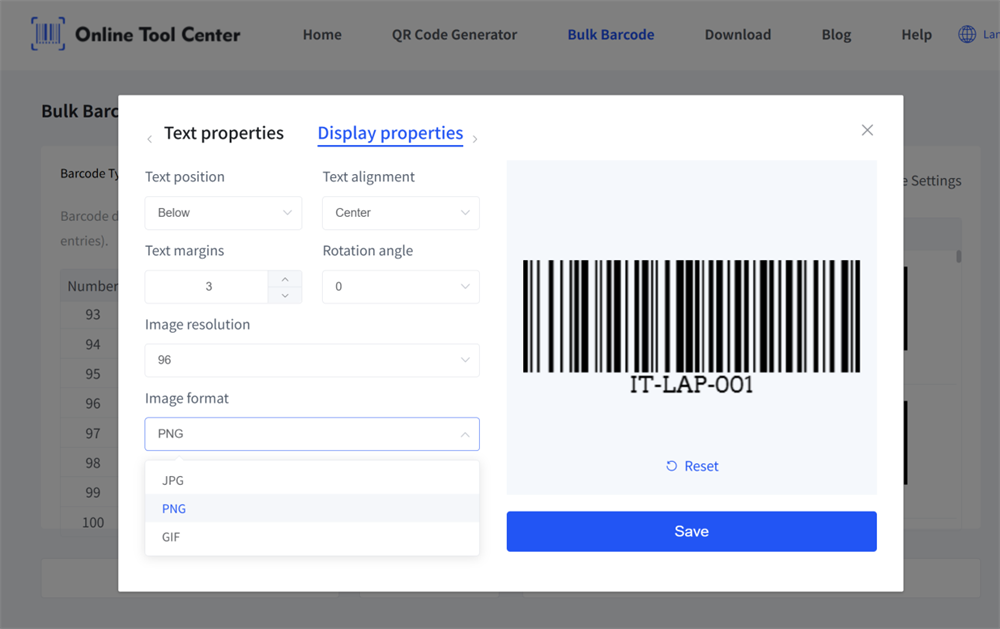
• Adjust Settings: Customize your settings before you generate. Adjust the Barcode Scale, Height, and Image Format (JPG, PNG, or GIF), and choose whether to display the text.
• Generate: Hit the “Create Barcode” button to instantly generate your entire batch.
You can also generate bulk Code 39 barcodes for mixed asset categories—such as IT, Facilities, Lab Equipment, and Office Supplies—in one batch by grouping identifiers within the spreadsheet.
Step 3: Download and Print
Our powerful Bulk code 39 barcode generator tool allows you to batch create and download all 100 barcodes as a ZIP file containing high-quality images (in your chosen format, such as PNG).
You can then drag these images into a Word label template (like Avery) or print them directly using a thermal label printer.
From Sticker to System: Integrating with Software
Generating office equipment inventory tags is only the first step. To make these tags useful, they need to be tied to a database.
You do not necessarily need expensive software. Here is a simple workflow:
✔️Stick: Apply the Code 39 labels to the bottom of the laptops.
✔️Scan: Open an Excel sheet or a Google Form. Click into a cell.
✔️Capture: Use a handheld USB scanner (or a smartphone app) to scan the barcode. The scanner acts like a keyboard, instantly typing IT-LAP-001 into the system.
✔️Enrich: In the adjacent columns, record the User Name, Purchase Date, and Warranty Expiry.
Conclusion
Implementing an asset tracking system doesn't have to be complicated or expensive. By leveraging the alphanumeric capabilities of Code 39 and the efficiency of a bulk barcode generator, you can secure your company's equipment in an afternoon.
Ready to organize your office assets? Start using our free Bulk Barcode Generator Code 39 tool today to create professional, scannable labels for your entire inventory.