



Manual check-ins with printed spreadsheets are slow, error-prone, and outdated. Crossing off names by hand causes delays and leaves a poor impression in corporate seminars, workshops, and controlled office environments. Adding barcodes to ID cards or event passes streamlines check-ins, enabling sub-second scans with near-perfect accuracy.
Despite common assumptions, barcode-based check-in systems don't require expensive enterprise software. For small to mid-sized attendee lists—typically a few hundred people or fewer—you can generate and print professional barcode badges using free online tools. This guide shows how to set up a fast, reliable check-in process with minimal effort.
Benefits of Using Badge Barcodes for Check-Ins and ID Cards
Replacing manual lists with scannable badges offers three immediate advantages:
• Speed and Efficiency: A USB barcode scanner acts as a keyboard emulator. One scan instantly inputs the attendee's ID into your system, eliminating manual typing and reducing queue times significantly.
• Data Accuracy: Human error is common when manually searching for names or typing ID numbers. Barcodes ensure the correct record is pulled up every time.
• Low Implementation Cost: Unlike RFID or NFC cards which require expensive hardware, barcode labels cost practically nothing to print.
Choosing the Right Barcode Format for Badges
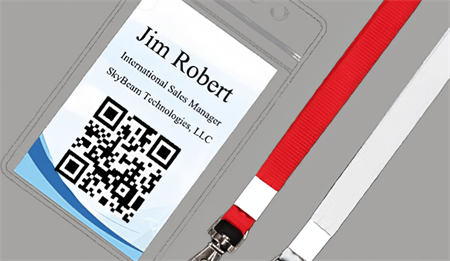
Selecting the correct barcode symbology is critical for ensuring your badges are readable by standard scanners. Here are the three most common options:
1. Code 128 (Recommended)
Code 128 is the industry standard for ID badges and event tickets.
• Best feature: High density. It can encode alphanumeric data (both letters and numbers, like EMP-001) into a relatively short barcode.
• When to use: This is the best choice for most ID cards, employee badges, and event passes.
2. Code 39
Code 39 is an older format that is widely supported but less efficient.
• Limitation: It has a low density. If your ID number is long (e.g., STUDENT-2024-05), the resulting barcode will be very wide and may not fit on a standard badge.
• When to use: Only use this if your ID numbers are very short (e.g., 001 to 099).
3. QR Codes
QR codes are 2D matrix codes that can store significantly more data.
• Usage: These are ideal if you need to encode a URL (like a registration page) or full contact details (vCard).
• Note: For simple check-in stations using laser scanners, linear barcodes (Code 128) are often faster to scan from a distance than QR codes.
How to Generate Bulk Badge Barcodes in 3 Steps
For large enterprises with thousands of staff, specialized inventory software is necessary. However, for smaller batches (under 100), an online bulk generator is the most efficient solution.
Here is a simple workflow to create your badges:
Step 1: Prepare Your Data
Open Excel or Google Sheets and create a clean list of the unique IDs you need to encode.
• Example: ID-001, ID-002, ID-003
• Tip: Keep the IDs concise to ensure the barcode remains compact.
Step 2: Generate Codes in Bulk
Instead of creating codes one by one, use a bulk barcode generator to save time.

1. Go to our Bulk Barcode page.
2. Select Code 128 from the menu.
3. Copy and paste your list of IDs into the text box (our barcode tool supports up to 100 lines per batch).
4. Click Generate.
Pro Tip:
The badge barcode generator will create a preview immediately. You can then download all barcodes as a ZIP file containing individual high-quality images.
Step 3: Design and Print
Once you have the image files, you can integrate them into your badge design. Just merge barcode data with attendee information—such as names, company details, or access levels—into a single badge layout.
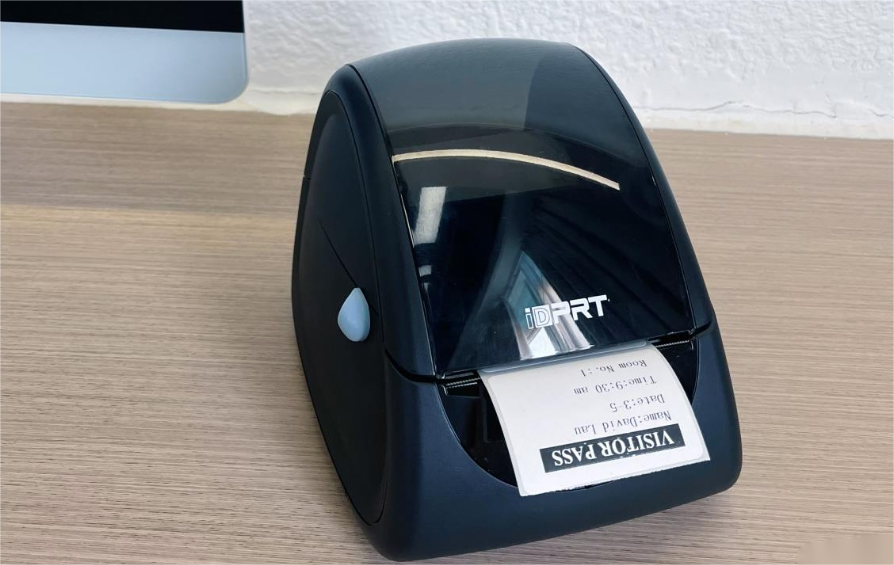
After finalizing the design, print the badges in batches using a label printer or badge printer, then apply them to cards or PVC badges to complete the process.
Common Printing and Design Mistakes
To ensure your badges scan correctly on the first try, avoid these common design errors:
1. Low Contrast
Barcodes require high contrast to function. The bars should be dark (preferably black) and the background must be light (white).
• Avoid: Printing red or light grey barcodes on dark backgrounds. Most standard scanners cannot read these combinations.
2. Insufficient Size
Scaling a barcode down too much will merge the lines, making it unreadable.
• Guideline: For Code 128, maintain a minimum width of 1 inch (25mm) and a height of 0.4 inches (10mm).
3. Glossy Lamination
Highly reflective plastic holders or lamination can reflect the scanner's laser beam, causing scan failures.
• Solution: Test your lamination under venue lighting before the event, or use matte-finish badge holders.
FAQ
Q: Can I use Excel to generate barcodes directly?
A: Excel requires third-party fonts or complicated macros to display barcodes. Using an online generator is faster as it provides print-ready images immediately.
Q: Do I need a specific scanner for Code 128?
A: No. Code 128 is a universal format. It works with almost all USB handheld scanners and mobile scanning apps.
Q: What if I have more than 100 attendees?
A: Our tool is optimized for speed with batches of up to 100. For larger lists, simply split your data into groups (e.g., Batch A, Batch B) and generate them sequentially.
Ready to simplify your event management?
Create professional, scannable badges in minutes without installing any software.
